Table of Contents
For years, owners of sleek, always-connected Arm-based Windows PCs (like those powered by Qualcomm Snapdragon chips) faced a gaming dilemma. They could stream games via the cloud, but native PC Game Pass game play was off the table due to x64 emulation hurdles. That barrier has now officially Going to Happen.
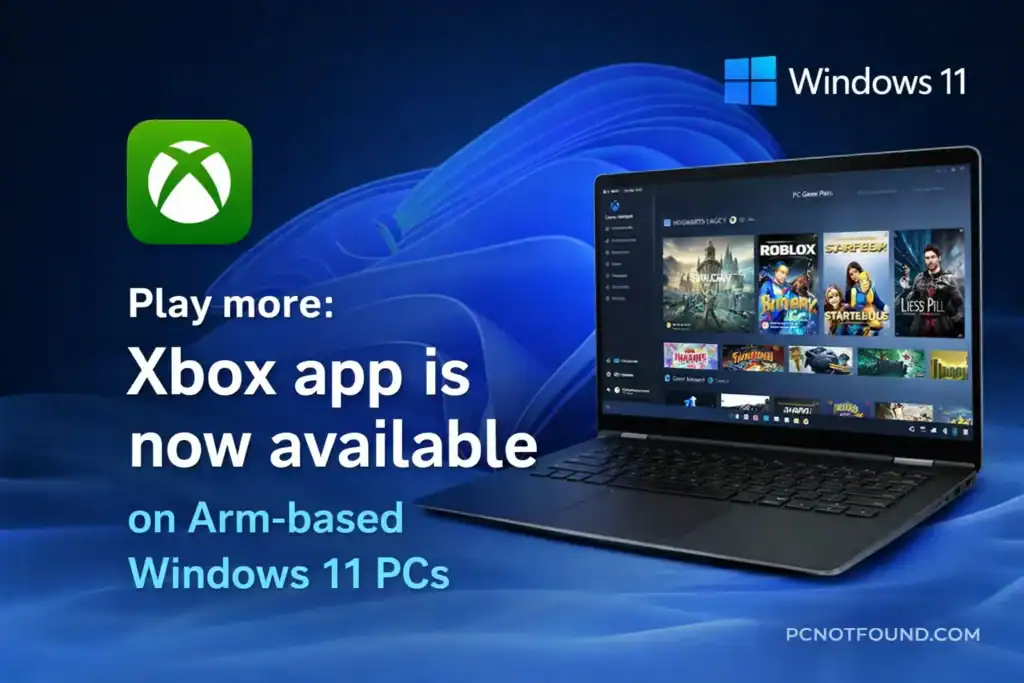
Microsoft has officially announced the full, native release of the Xbox app for Arm64 devices running Windows 11. This isn’t a beta or a preview—it’s the real deal, opening up a vast library of PC games to a new generation of thin, fan-less, and incredibly efficient Laptops.
at only PCNOTFOUND, we’re diving into what this means for you, how to get it, and why this is a game-changer for the future of Windows on arm based systems.
What Does "Native Arm Support" Actually Mean.?
*BEFORE : The Xbox app and most PC Game Pass games were built for traditional x64 (Intel/AMD) architecture. Arm devices (like Snapdragon PCs) had to run them through an emulation layer, which often caused significant performance hits, compatibility issues, or outright prevented games from launching.
*NOW: The Xbox app itself is now compiled natively for Arm64. More importantly, it can now seamlessly install and run games that have also been ported to native Arm64. This means direct, efficient access to the hardware, resulting in:
- Better Performance : Higher frame rates and smoother gameplay.
- Improved battery life: Native code is more power-efficient the
emulated code - Full Compatibility: No more this game won't launch errors for supported titles
How to Get the Xbox App on Your Arm Windows 11 PCs.
1. Ensure You're Updated: Go to Settings > Windows Update and install the latest Windows 11 version (build 22621 or later).
2. Download From the Official Source: Simply head to the official Xbox App page on the Microsoft Store. It should automatically detect your Arm architecture and deliver the correct native version.
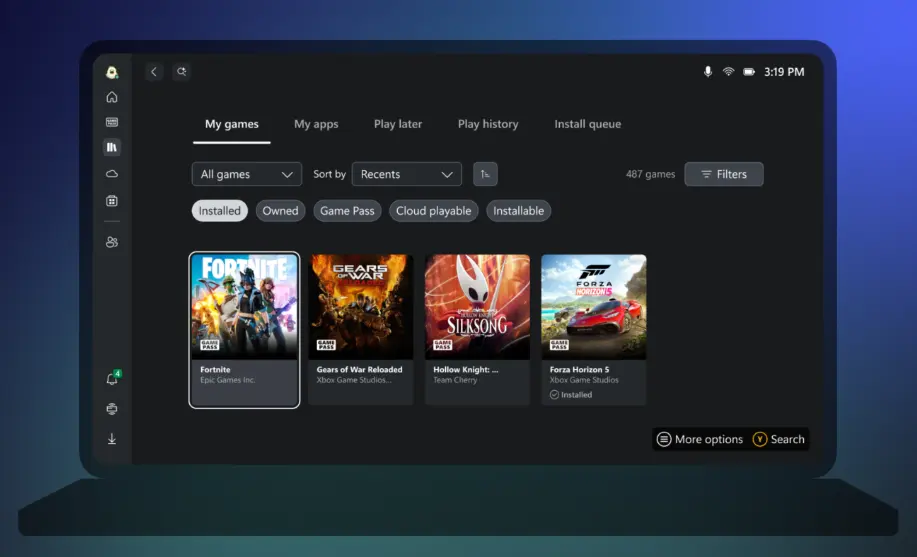
3. Sign in and Browse: Open the app, sign in with your Microsoft account, and if you have a PC Game Pass or Xbox Game Pass Ultimate subscription, you'll see a library of games marked as "Available on ARM" or "Playable on ARM.
					Pro Tip from PCNOTFOUND:
If you had the old emulated version, Windows Update and the Microsoft Store should handle the transition automatically. If you encounter issues, uninstall the old app first, then download fresh from the Store
Which Games Can You Play Natively.?
- Gears 5
- Doom Eternal
- Dishonored: Death of the Outsider
- Halo Infinite (Campaign)
- Forza Horizon 4 & 5
- Microsoft Flight Simulator
- Palworld
- Rise of the Tomb Raider
Why This is a Big Deal for the Future
Potential Hiccups & Troubleshooting (PCNOTFOUND Style)
1. Game Launch Errors: If a game marked for Arm fails, check for pending game updates in the Xbox app's "My Library" section. Verify your graphics drivers are also updated via Windows Update.
2. Performance Issues: Ensure your power mode is set to Best Performance when plugged in. Close unnecessary background apps to free up RAM.
3. App Won't Install: Run the Windows Store Apps Troubleshooter (Settings > System > Troubleshoot > Other troubleshooters).
Stuck? Our community forums are a great place to search for specific error codes and fixes.
Stuck.? Our community forums are a great place to search for specific error codes and fixes.
The native Xbox app for Arm is the missing piece that finally unlocks the gaming potential of your Snapdragon Windows PC. It transforms devices known for incredible battery life and connectivity into legitimate gaming companions.
Whether you’re diving into the native version of Forza Horizon 5 on a fanless laptop or streaming Starfield on the go, the “Play More” promise has never been more real for Arm users.
Are you excited to game on your Arm PC? Which title are you installing first? Let us know in the comments below, and for more deep dives into Windows updates, driver fixes, and getting the most from your hardware, stay tuned to PCNOTFOUND.com.