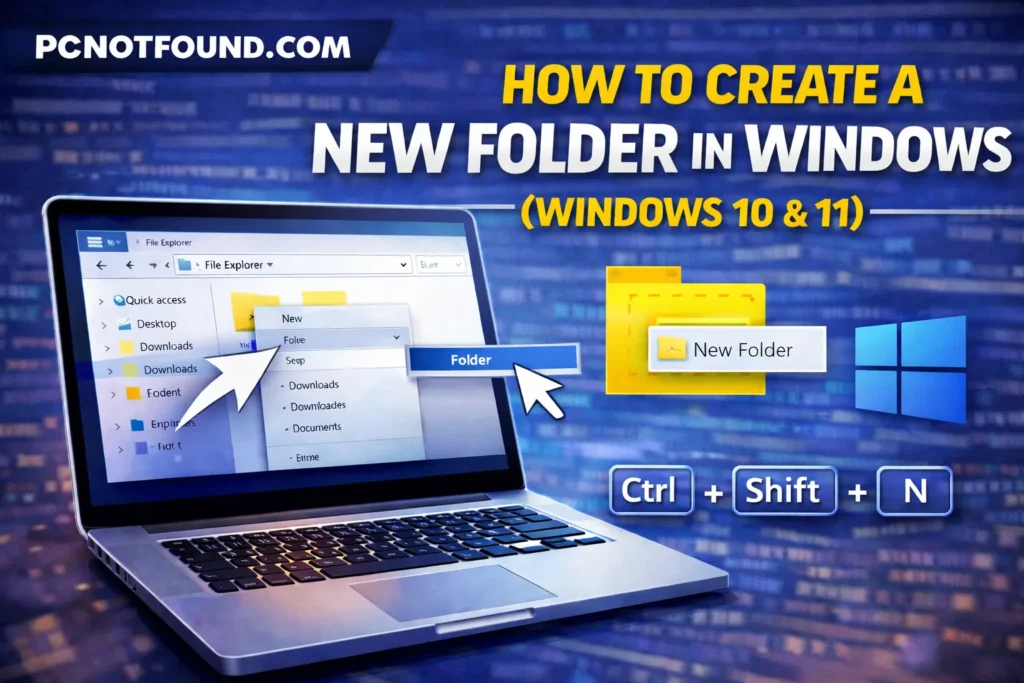
Creating new folder in windows help you keep your files managed, easy to find, properly organized. if your using Microsoft Windows 11 or Windows 10 than you should know how to crate a new folders is a essential computer skills.
in this Post you’ll Learn Multiple vary easy ways to create a new folders in Microsoft Windows Step by step for New Beginners.
A System folder in Windows is a Like Container Used to Store such as documents, software, personal data, music videos.
This is the most commonly used method for create a new folder in windows.
Your New folder is now Created in your location.
This New folder method is the fastest way to create a new folder.
Ctrl + Shift + N
A New folder Will Created instantly, Now You can Renamed it.
4.Click New (Windows 11) Home → New folder (Windows 10)
5.Now Rename the folder.
This method is Vary helpful for new windows Users.
mkdir FolderName
4.Press Enter
This method for Advance users & full automation.
OR
Creating a folder in windows is simple & helps you Keep files organized and easy to accessible. Use Keyboard, mouse Shortcut keys or Common prompt, Windows Provides easy Multiple ways to create a folder
We use cookies to improve your experience on our site. By using our site, you consent to cookies.
Manage your cookie preferences below:
Essential cookies enable basic functions and are necessary for the proper function of the website.
These cookies are needed for adding comments on this website.
Statistics cookies collect information anonymously. This information helps us understand how visitors use our website.
Google Analytics is a powerful tool that tracks and analyzes website traffic for informed marketing decisions.
Service URL: policies.google.com (opens in a new window)
SourceBuster is used by WooCommerce for order attribution based on user source.
You can find more information in our PRIVACY POLICY and PRIVACY POLICY.