15 Hidden Windows 11 Features to Improve Performance – 2026 Guide | PCNOTFOUND.COM

15 Hidden Windows 11 Features That Instantly Improve Performance (2026 Guide)

Windows 11 look s polished out of the box, but many of its best performance settings are hidden behind menus most users never open. If your PC feels slow, lag, or overloaded, these built-in tweaks can improve responsiveness without installing third-party optimization tools or applications. try below provided 15 Guides That can Surly help for windows Optimization.

The most effective Hidden Windows 11 features you can Enable Right now.😎

15 Hidden Windows 11 Features to Improve Performance – 2026 Guide | PCNOTFOUND.COM
(Image credit: Pcnotfound /Microsoft)

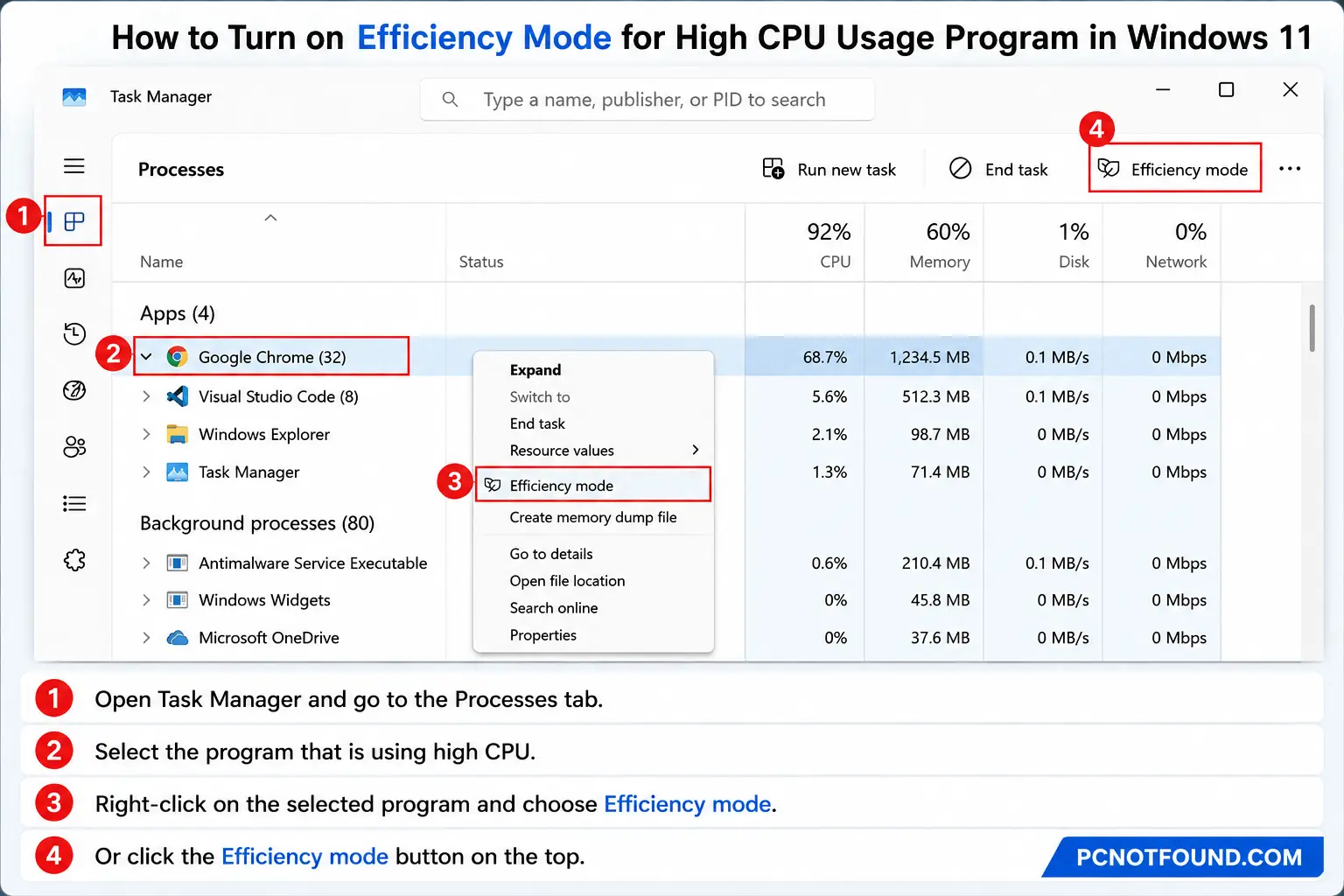
1. Turn on efficiency Mode for Heavy Apps

Windows 11 Efficiency Mode, which reduces CPU usage for resource-hungry Applications.

How to enable Windows 11 efficiency mood

  1. Press Ctrl + Shift + Esc
  2. Open Task Manager
  3. Select a high-usage app
  4. Click Efficiency Mode

efficiency mode best Optimization for :

  1. Internet Browsers
  2. heavy Editing Software's
  3. Background Applications
Performance Gain : Lower CPU Load and improved Battery, System Speed

EASY SCREENSHOT GIVEN BELOW FOR BETTER UNDERSTANDIN😉
Turn On Efficiency Mode for Heavy Apps pcnotfound.com
(Image credit: Pcnotfound /Microsoft)

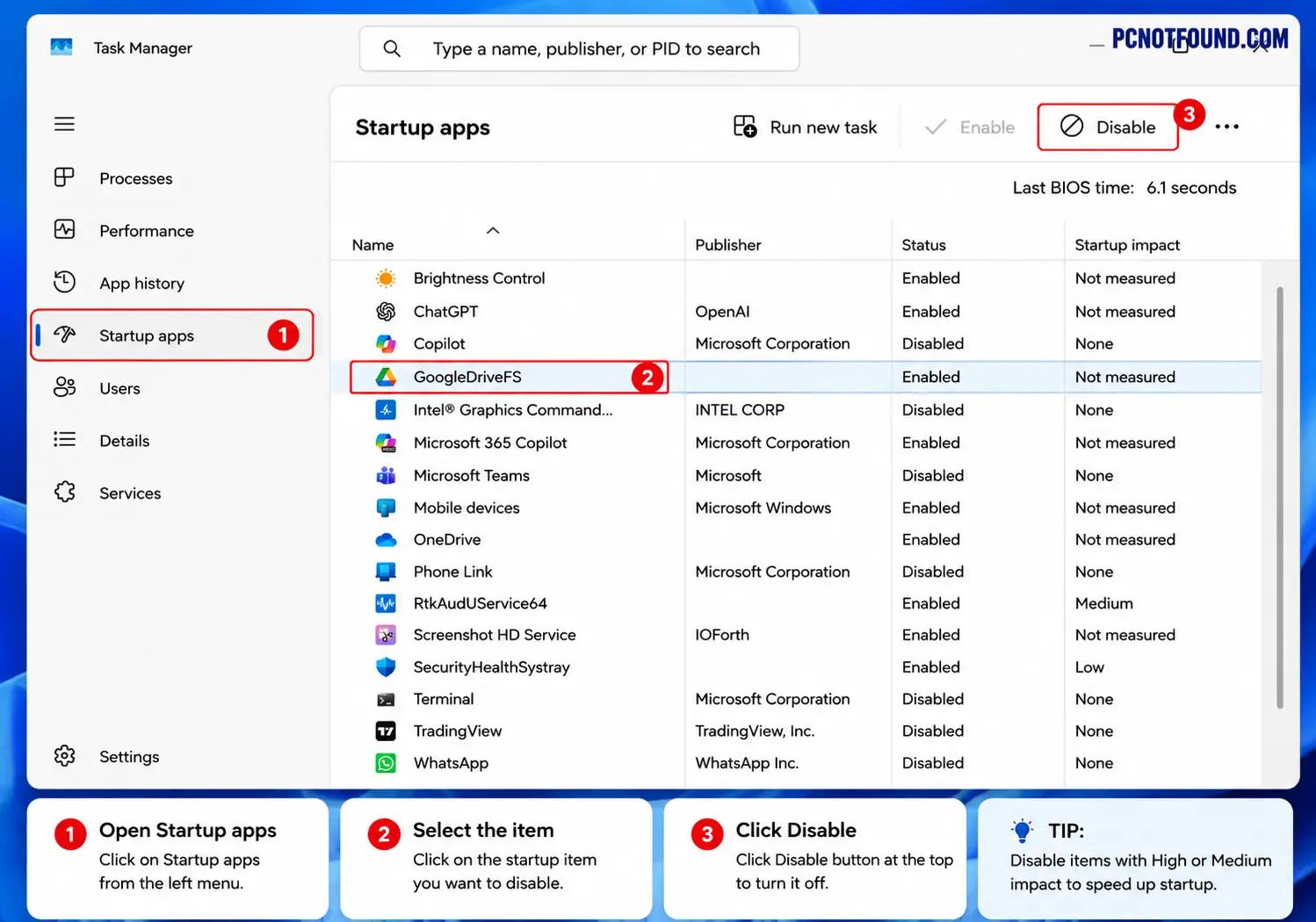
2. Disable Windows Startup App

To many Startup programs slow boot times.

How to Disable Startup Items.

  1. Open Settings → Apps → Startup
  2. Disable unnecessary apps
Disable Startup App pcnotfound.com
(Image credit: Pcnotfound / Microsoft )

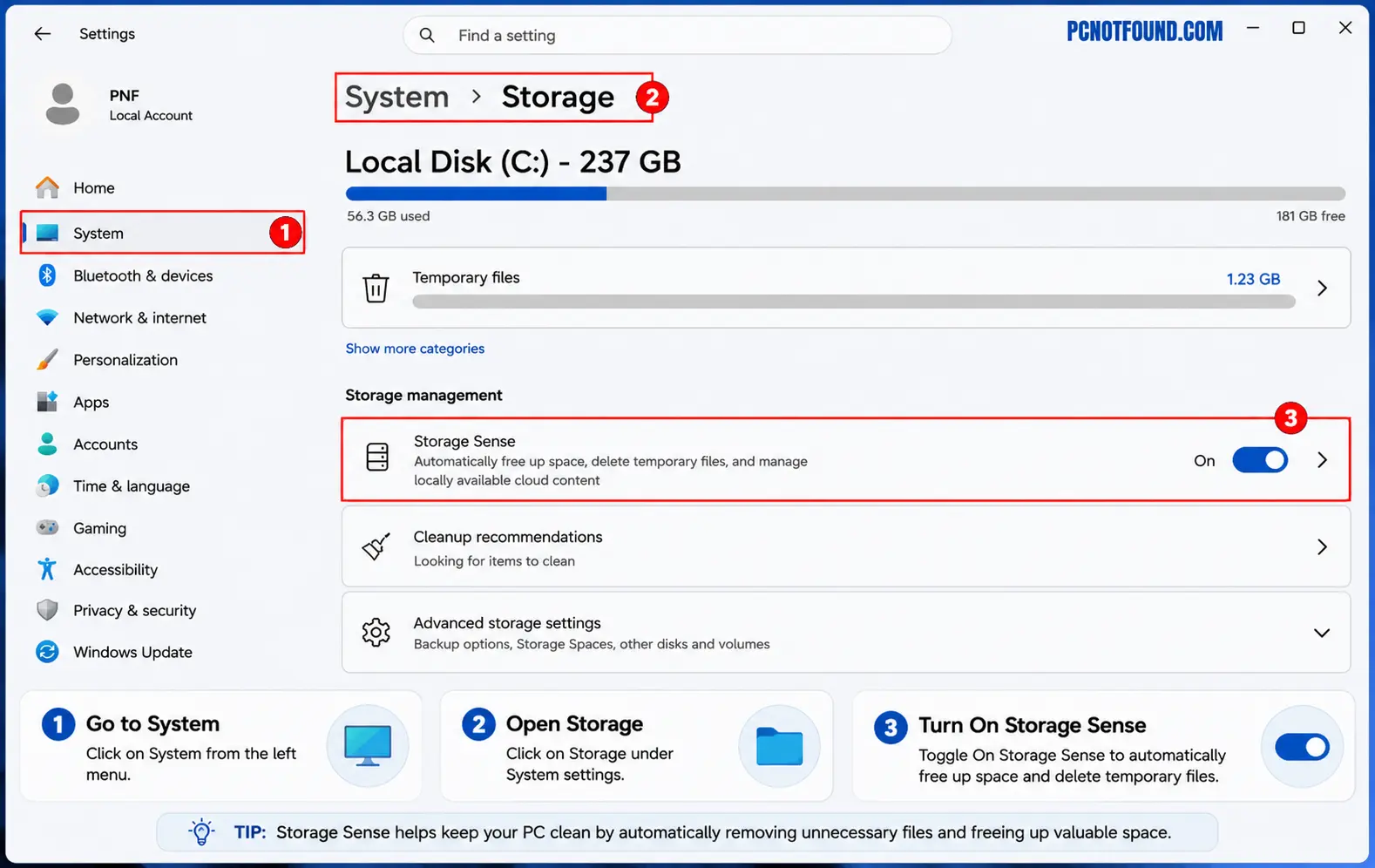
3. Enable Storage Sense in Windows

Storage Sense Auto remove Windows files Temporary.

To Enable Storage Sense

Settings → System → Storage → Storage Sense → ON

Enable Storage Sense in windows setting
enable Storage Sense (Image credit: Pcnotfound /Microsoft )

Advantage:

  • Temporary files cleanup
  • Recycle Bin schedule
  • Auto Clean Downloads 

Performance gain: free More HDD/SSD space.

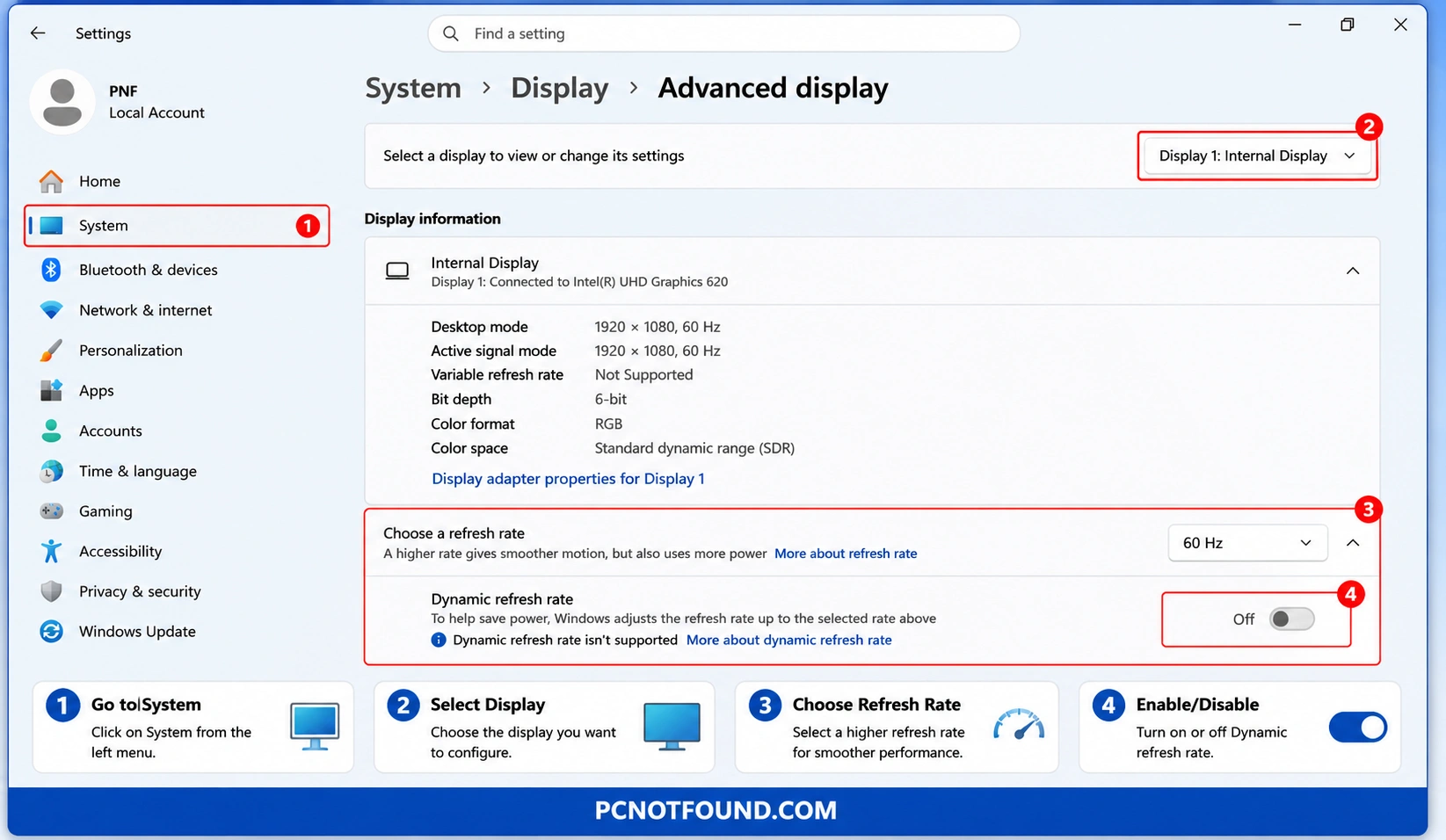
4. Turn on Dynamic Refresh Rate (DRR)

Only if your display supports higher refresh rates:

Go-to 

Windows Settings → System → Display → Advanced Display

Choose 

  • Dynamic Refresh rate enable

Windows 11 Advanced Display settings tutorial showing how to enable Dynamic Refresh Rate and adjust refresh rate settings for smoother performance and improved battery life – PCNOTFOUND.COM
Activate DRR Image credit: Pcnotfound /Microsoft )

Performance Gain: Better smoothness in graphics with balanced battery use.

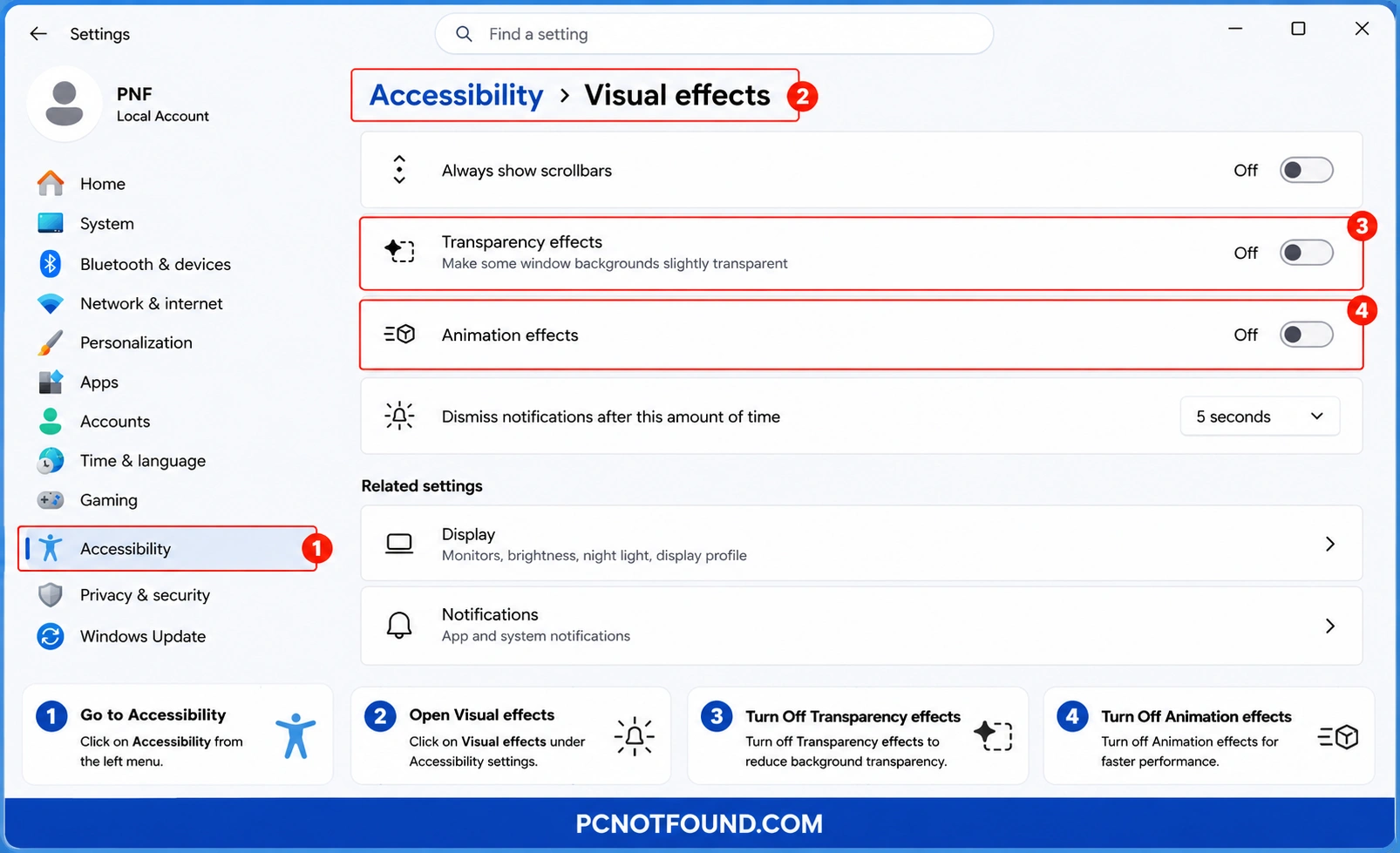
5. Disable Visual effects

Windows animations Consume more resources.

Disable Go-to

Settings → Accessibility → Visual Effects

Windows 11 Accessibility Visual Effects settings tutorial showing how to turn off Transparency Effects and Animation Effects to improve speed and system performance – PCNOTFOUND.COM
Disable Visual Effects (Image credit: Pcnotfound /Microsoft )

Turn Off : 

  • Animation effects
  • Transparency effects 

Performance Gain: Faster UI (User Interface) response.

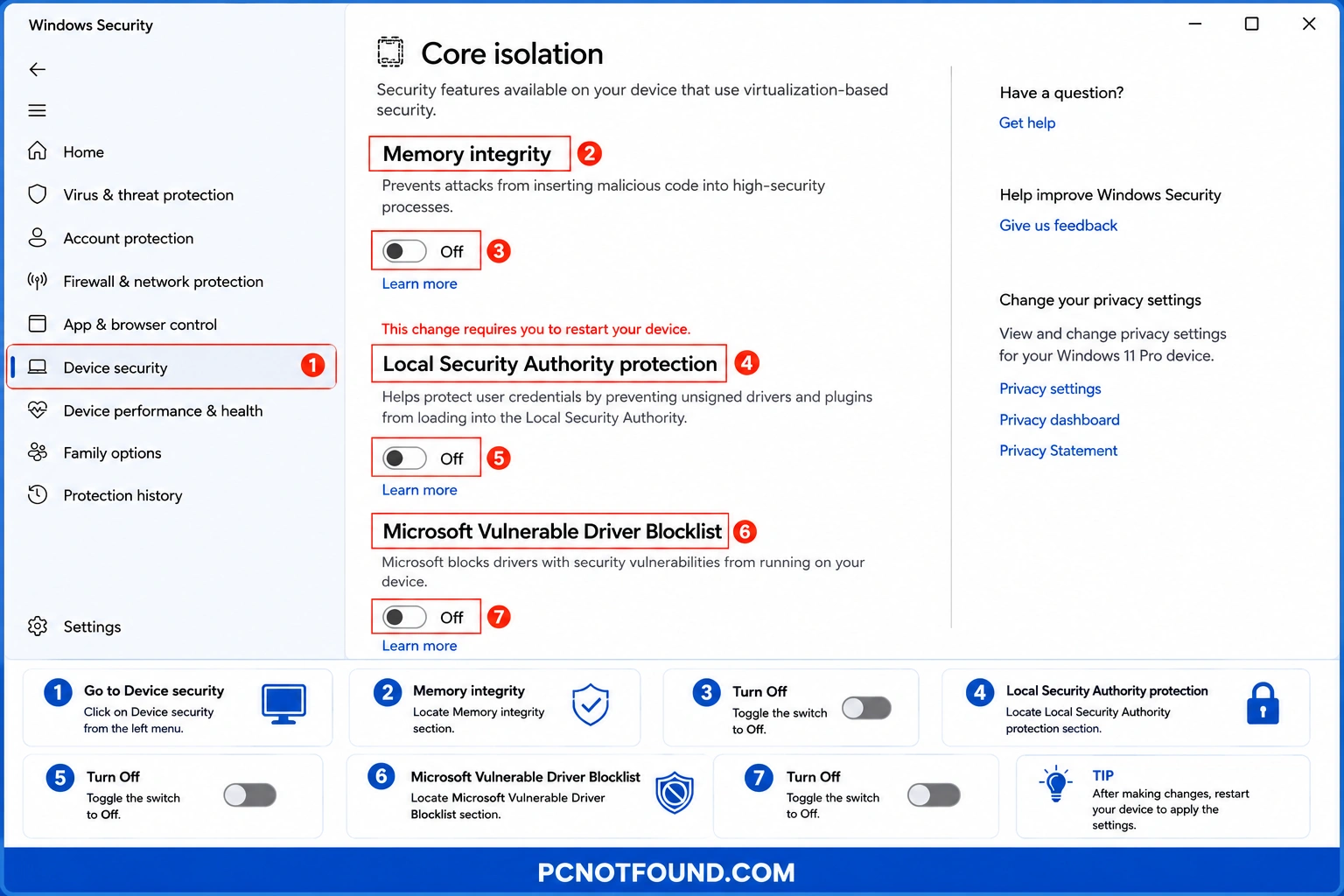
6. Use Memory Integrity Selectively

Windows Security includes extra protection features

Check only :

  • Windows Security→ Device Security

Disable Memory-integirty (Image credit: Pcnotfound /Microsoft )

Disable only if:

  • While Gaming
  • Virtualization workloads
  • Trusted environment

Performance gain: Slight Gaming improvement.

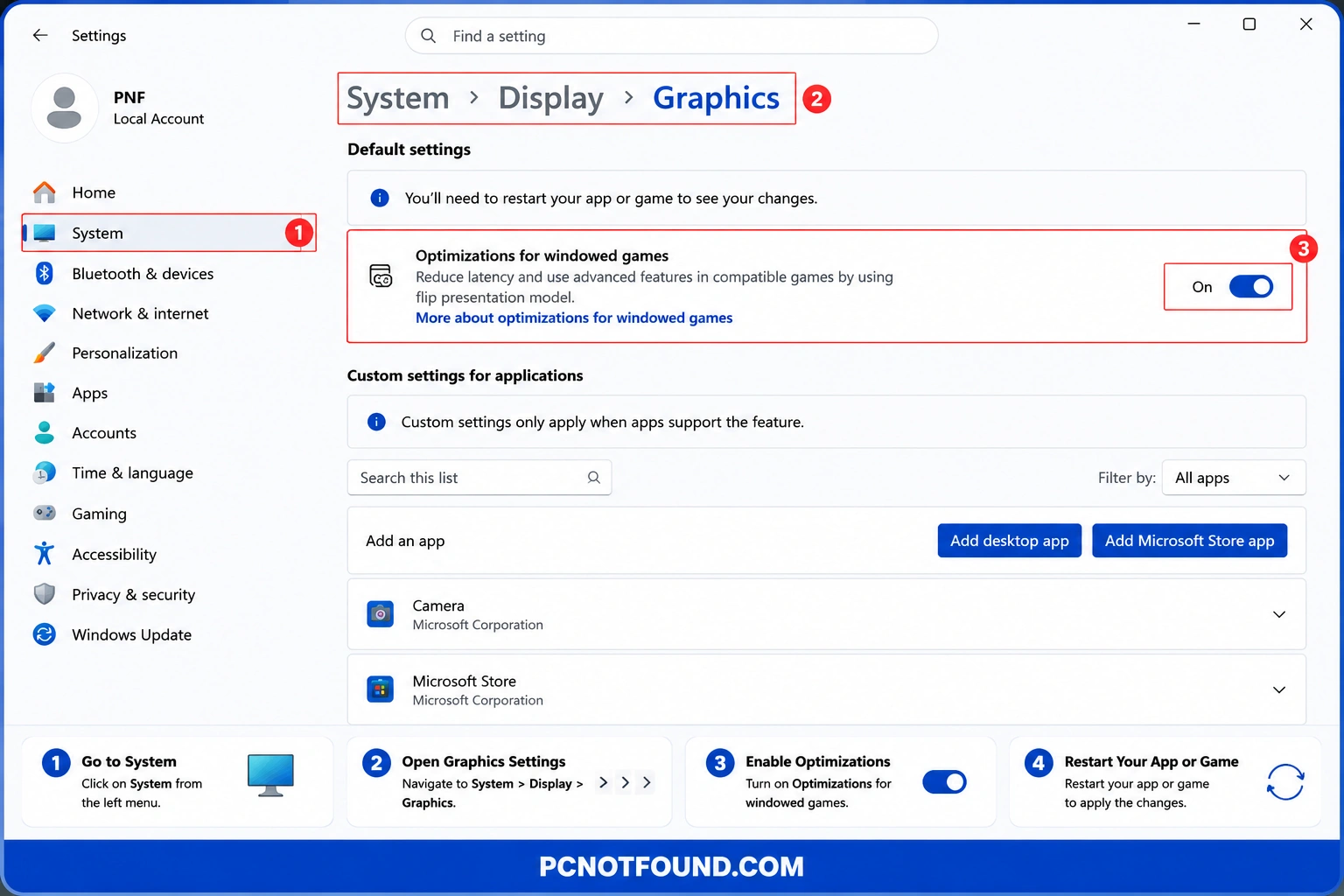
7. Enable hardware Accelerator GPU Scheduling

how to enable , if Disabled :

Go-to

Windows Settings → System → Display → Graphics

Windows 11 Graphics settings tutorial showing how to enable Optimizations for Windowed Games under System > Display > Graphics to improve gaming performance and reduce latency – PCNOTFOUND.COM
Enable Hardware Accelerated GPU Scheduling (Image credit: Pcnotfound /Microsoft )

Enable:

  • Hardware-accelerated GPU scheduling

Performance gain: Lower latency in games and smoother graphics.

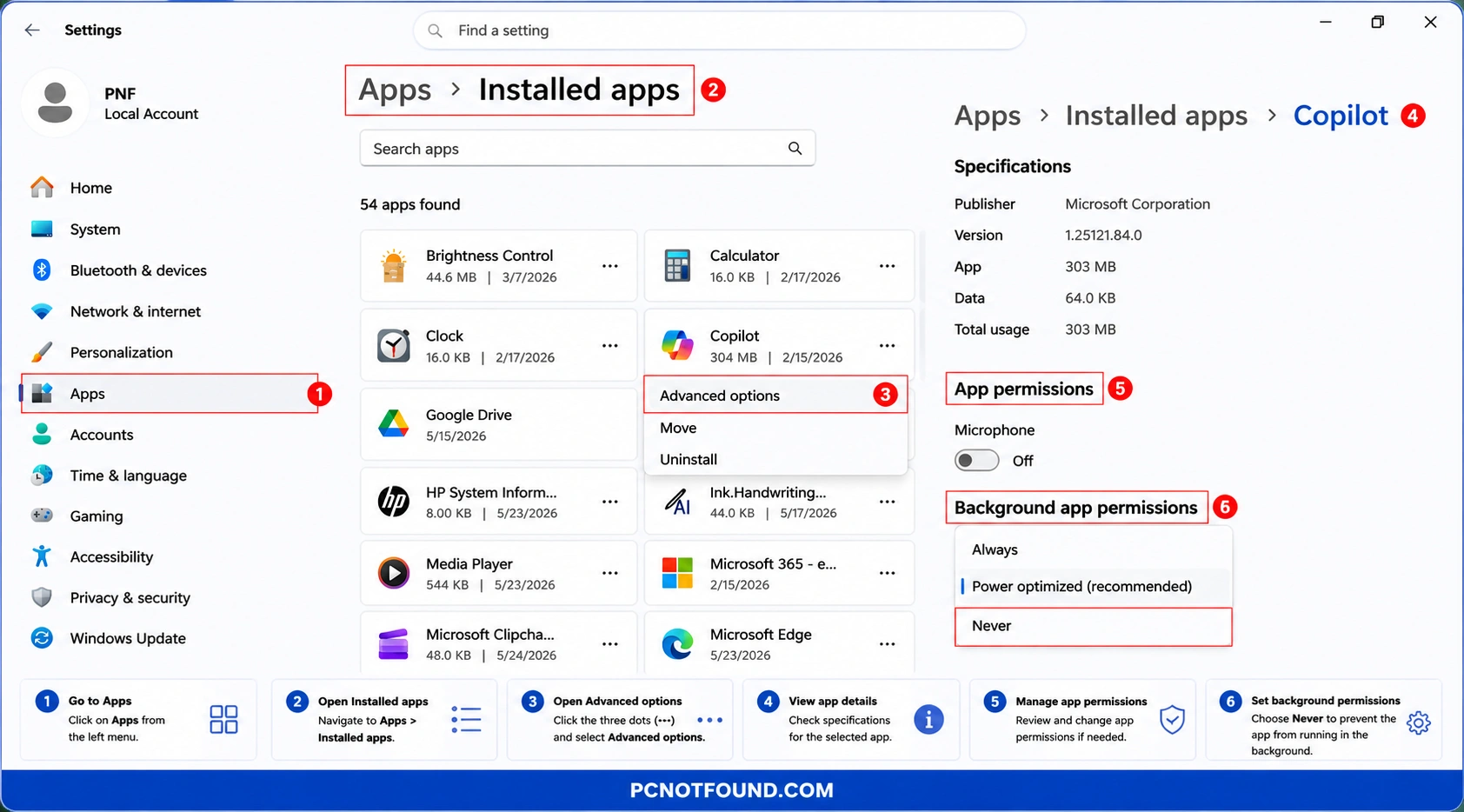
8. Optimize Background App Permissions

Stop unnecessary apps running constantly.

Windows Settings → Apps → Installed Apps → App Advanced option→ Background and App permissions → Choose Never

Windows 11 Installed Apps settings tutorial showing how to open Advanced Options and set Background App Permissions to Never for improved performance and reduced resource usage – PCNOTFOUND.COM
Reduce background resource usage in Windows 11 (Image credit: Pcnotfound /Microsoft )

Performance gain: Reduced RAM usage increase Performance and System Speed.

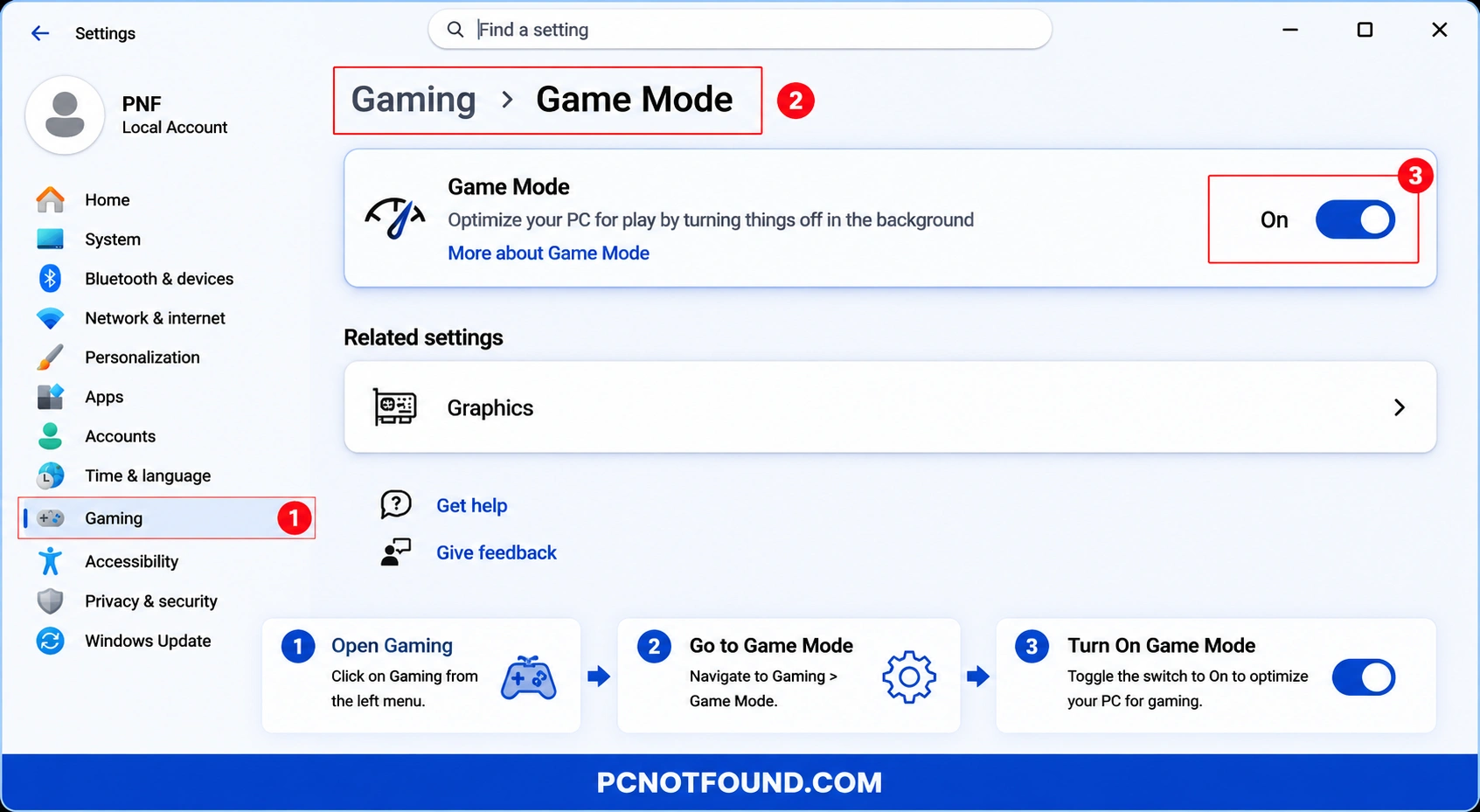
9. Use Windows Game Mode Even for General Performance

Go-to
windows Settings → Gaming → Game Mode → ON

Windows 11 Game Mode settings tutorial showing how to enable Game Mode from Gaming settings to improve gaming performance, reduce background activity, and optimize system resources – PCNOTFOUND.COM
Turn on Game Mode in Windows 11 (Image credit: Pcnotfound /Microsoft )

Game Mode prioritizes active workloads.

Performance gain: Better System responsiveness.

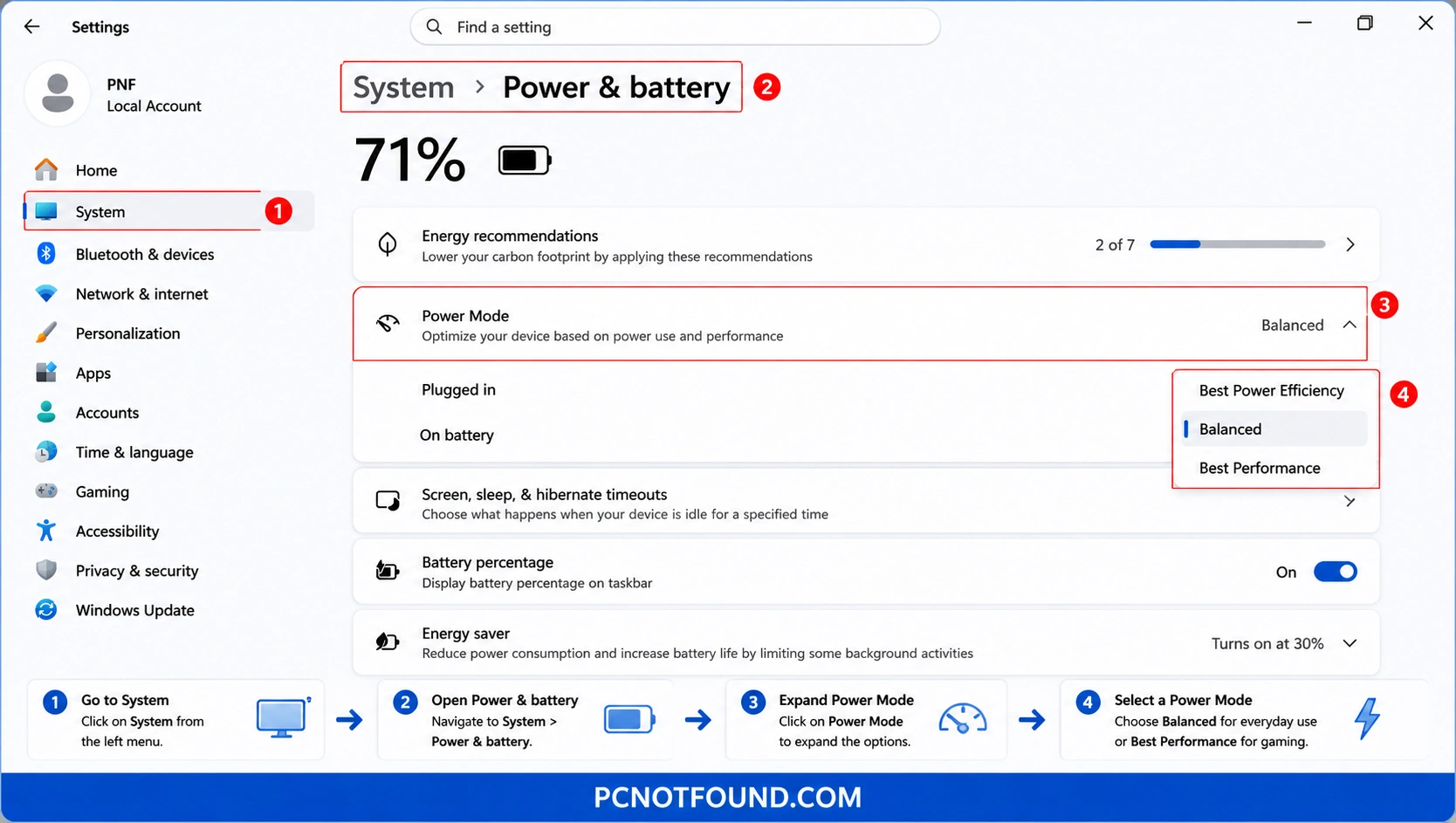
10. Adjust System power Mode

Go-to
Windows Setting → System  Power 

Windows 11 Power and Battery settings tutorial showing how to open Power Mode and switch between Balanced and Best Performance modes to improve system speed and performance – PCNOTFOUND.COM
Change Power Mode in Windows 11 (Image credit: Pcnotfound /Microsoft )

Choose for Laptop and Desktop :

  • Best Performance (desktop)
  • Balanced (laptop)

Performance gain: Higher sustained system speed.

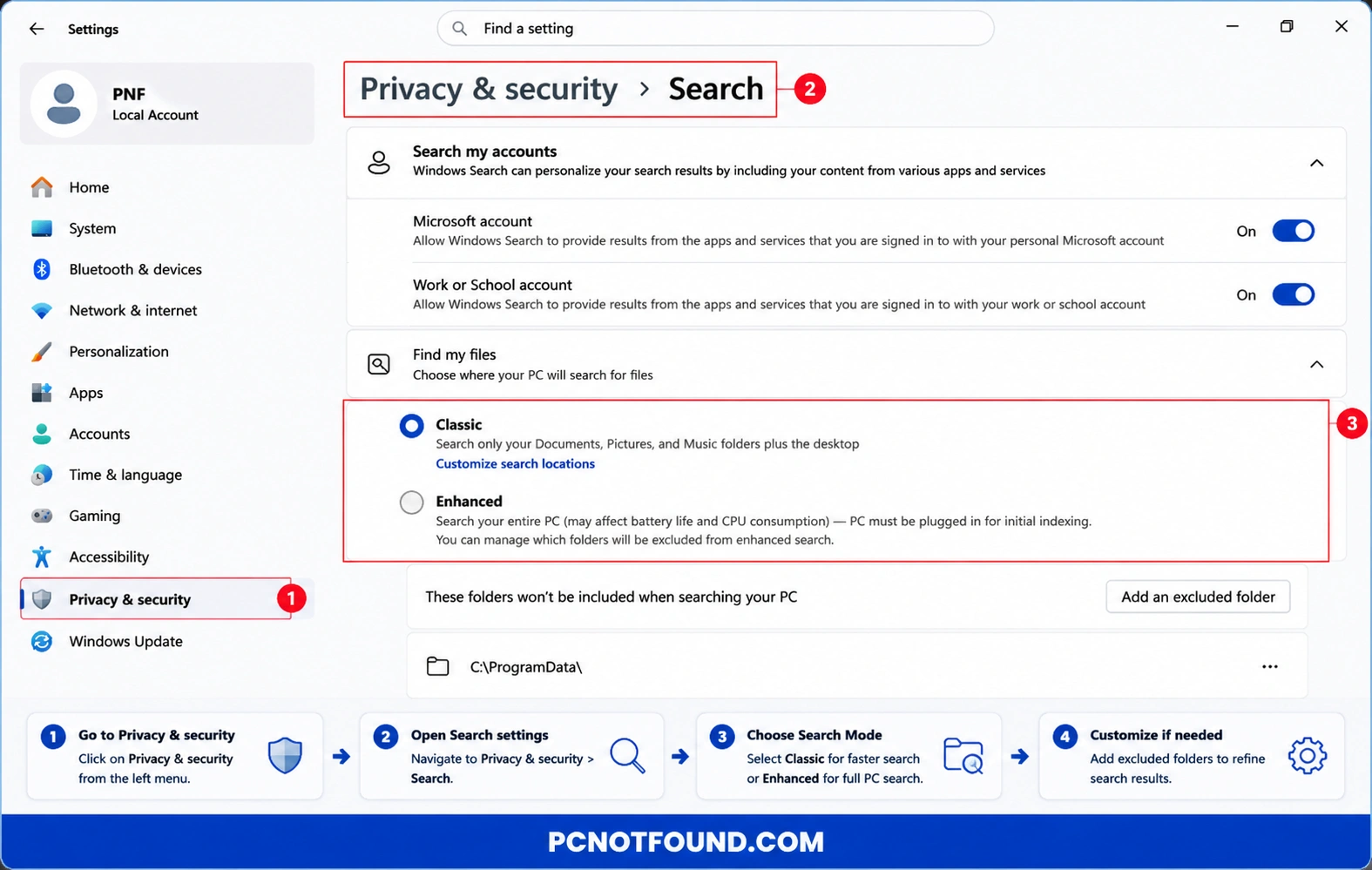
11. Pause Search Indexing

Search indexing can impact slower systems.


Go-to

Windows Setting → Privacy & Security → Searching Windows

Windows 11 Privacy and Security Search settings tutorial showing how to switch between Classic and Enhanced search indexing modes to improve search performance and reduce system resource usage – PCNOTFOUND.COM
Privacy and Security Search settings tutorial (Image credit: Pcnotfound /Microsoft )

Choose Only :

  • Classic

Performance gain: Lower disk activity.

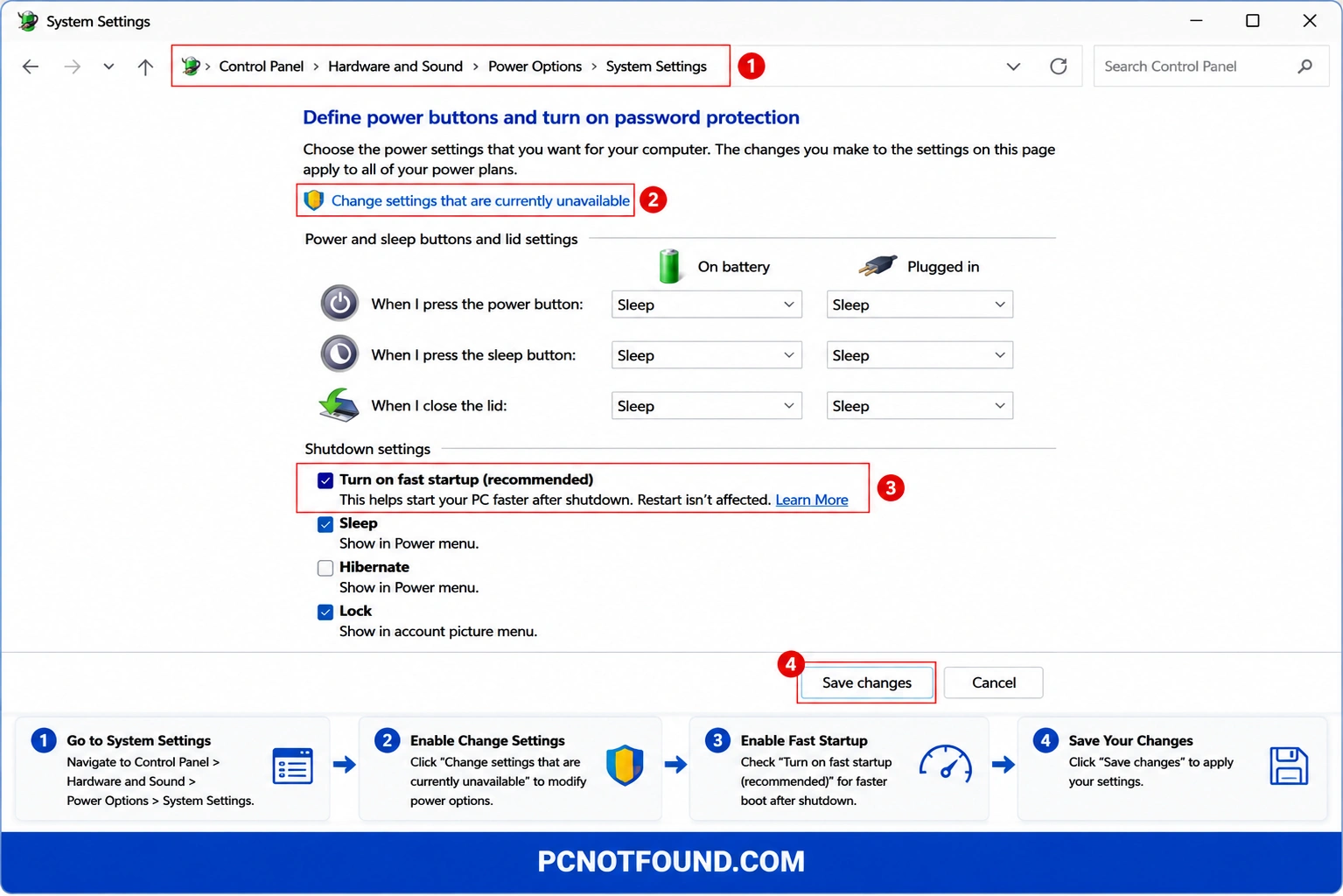
12. Enable Windows Fast Startup

Go-to

Control Panel → Power Options

Turn On:

  • Fast Startup

Windows 11 Control Panel Power Options tutorial showing how to enable Fast Startup from System Settings to reduce boot time and improve startup performance – PCNOTFOUND.COM
Enable Fast Startup in Windows 11 (Image credit: Pcnotfound /Microsoft )

Performance gain: Faster Windows boot times.

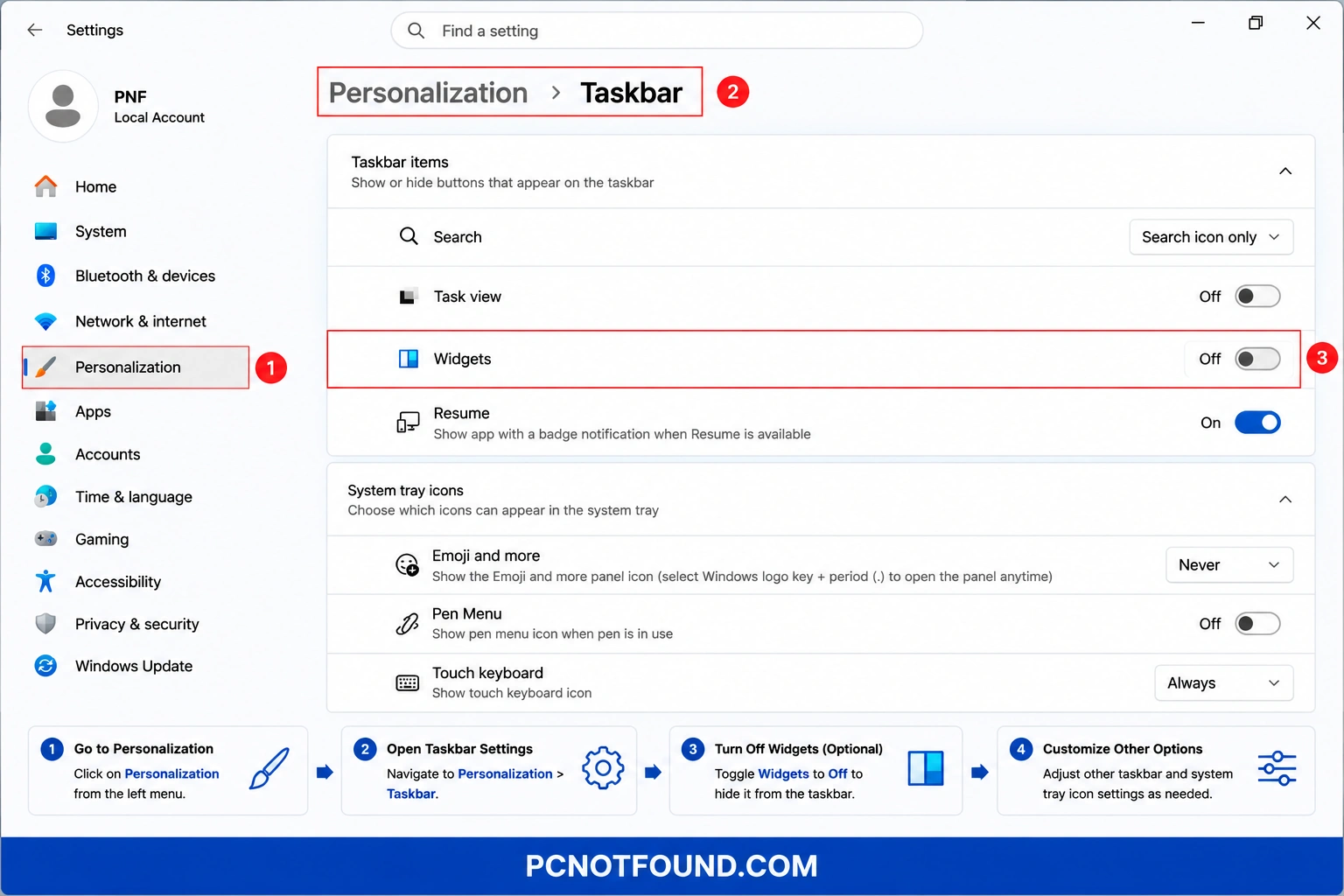
13. Disable Widgets and Background Feeds

Widgets consume memory and network resources.

For Disable:

Go-to

Windows Settings → Personalization → Taskbar

Windows 11 Taskbar settings tutorial showing how to open Personalization > Taskbar and disable Widgets to reduce background activity and improve system performance – PCNOTFOUND.COM
Disable Widgets in Windows 11 Taskbar (Image credit: Pcnotfound /Microsoft )

Only Turn off:

  • Widgets
  • News feeds Notfications.

Performance gain: Cleaner desktop performance.

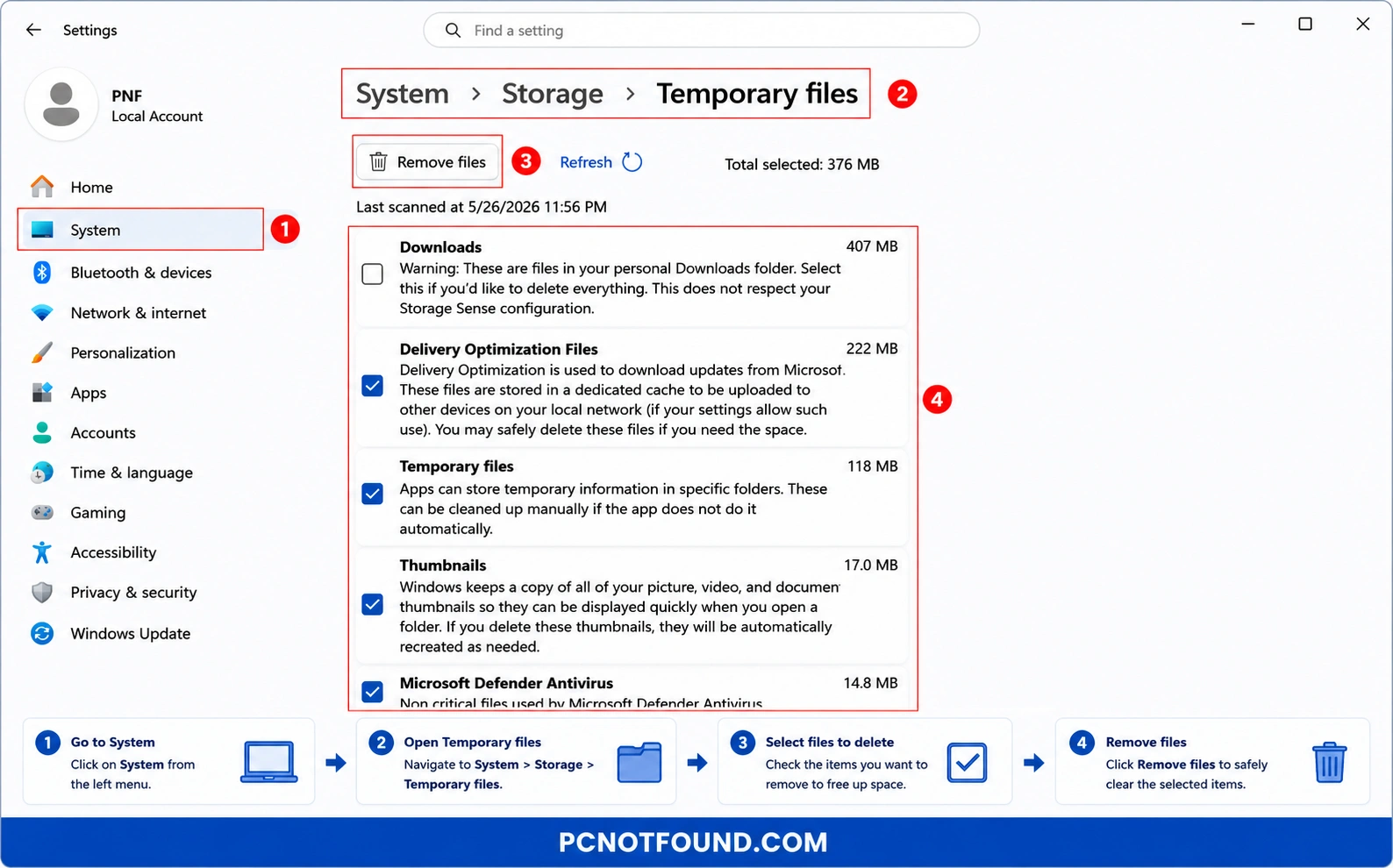
14. Clean Temporary Files Regularly

Go-to
Windows Settings → Storage → Temporary Files

Windows 11 Storage settings tutorial showing how to open System > Storage > Temporary files, select unnecessary files, and remove temporary data to free disk space and improve performance – PCNOTFOUND.COM
Clean Temporary Files in Windows 11 (Image credit: Pcnotfound /Microsoft )

Remove Without Selecting Download (Can be Clear your Important Download files):

  • Delivery Optimization files
  • Cache
  • Thumbnails
  • Microsoft Defender Antivirus
  • Temporary internet files
  • DirectX Shader Cache
  • Temporary updates
  • Windows error reports and feedback Diagnostics.

Performance gain: Better storage efficiency.

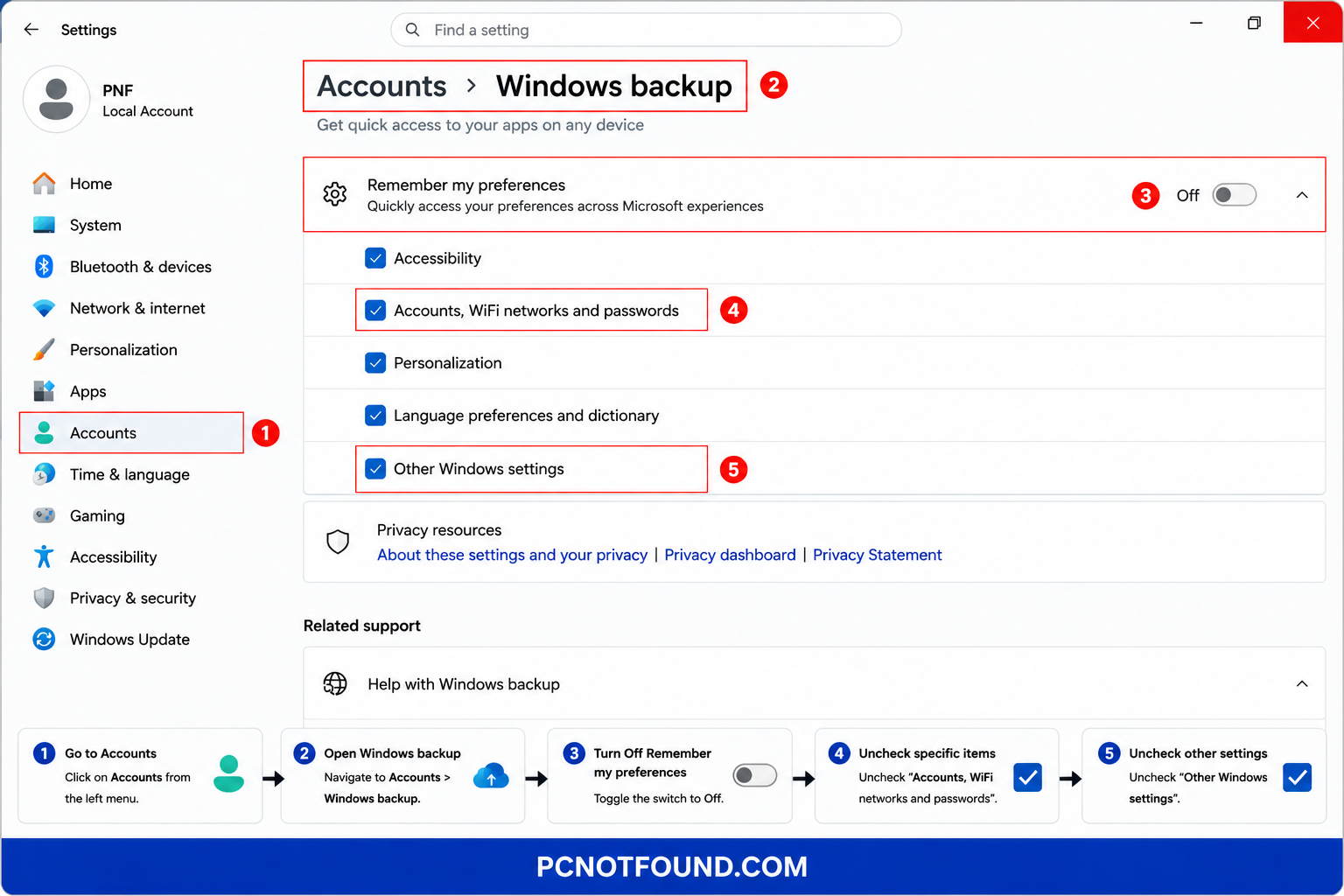
15. Turn Off Unnecessary Sync Features

Go-to
Windows Settings → Accounts → Windows Backup
Windows 11 Accounts and Windows Backup settings tutorial showing how to disable Remember My Preferences and turn off syncing options like WiFi passwords, personalization, and other Windows settings – PCNOTFOUND.COM
Disable Windows Backup Sync Settings (Image credit: Pcnotfound /Microsoft )

Disable:

  • Excessive sync options
  • Unneeded backup services

Performance gain: Reduced Windows  background activity.

Picture of Md. Arman ansari
Md. Arman ansari

the founder and CEO of pcnotfound.com. He is a professional computer hardware and software expert with over 8+ years of hands-on experience in troubleshooting, system repair, Windows issues, and technical diagnosis

0 Reviews

Write a Review

Scroll to Top