
boot apps Disable Startup items in windows 11 High CPU Usage Windows 11
If Your Computer Start Slowly, Startup items are only Main Reason. Microsoft Windows 11 runs Automatically Some Program at startup, Which can Increase boot time and also reduce System Performance. If you control which apps open when Pc start you can manage apps from the windows 11 startup folder.
In this Guide, you can learn How to add or remove Windows 11 Startup folder program add apps and Remove Unnecessary Startup application program Complete Step by Step.
Startup folder in Microsoft Windows 11 is Special folder That Contains Shortcuts of apps, that automatically start when you Logon in your PC. any Program Placed in this folder Will launce it self automatically When System Start.
Managing Windows Startup Apps Can help to:
This is the Fastest method
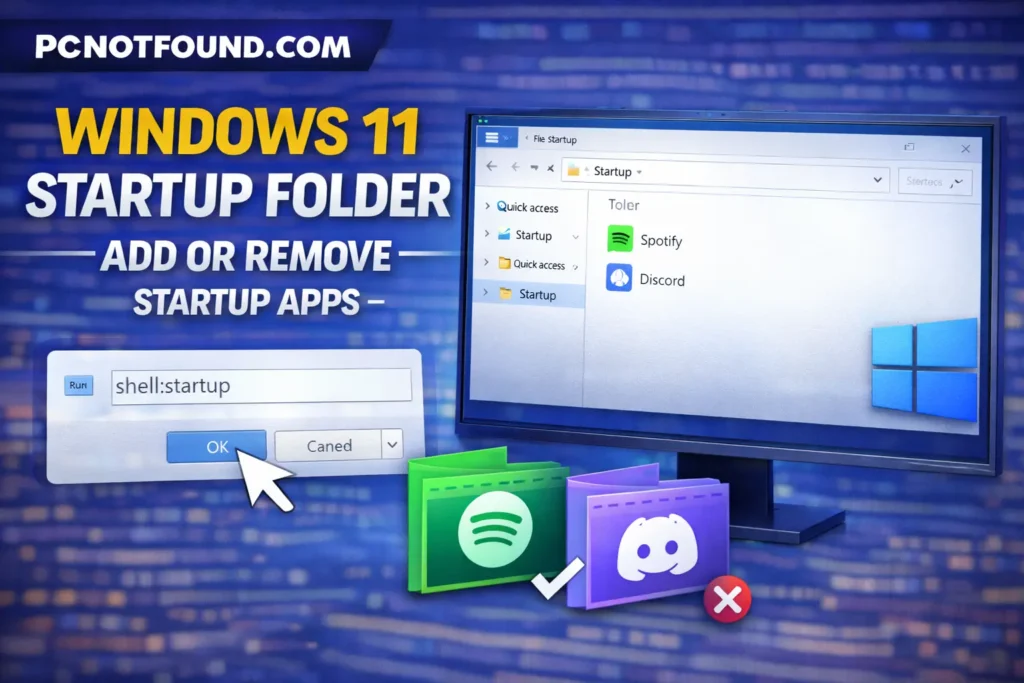
shell:startup
3. Press The Enter.
4. Windows Startup folders is Open.
Use This if you Allow Apps to start for all the user accounts
shell:common startup
3. Press Enter
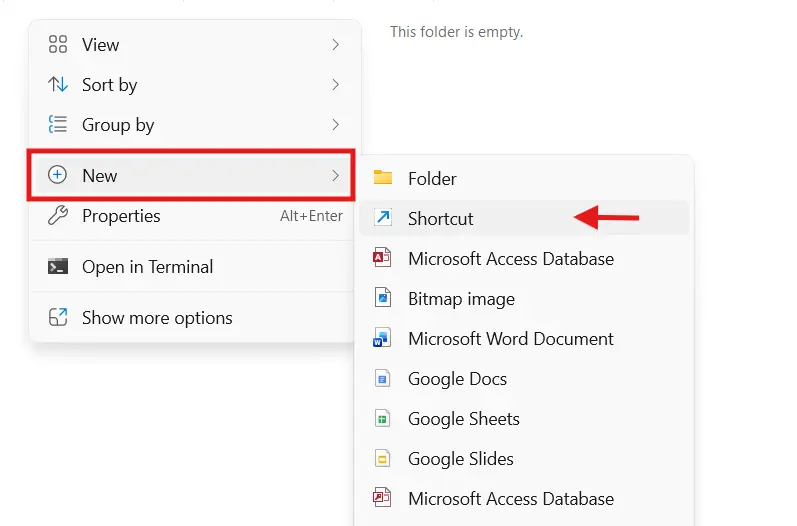
Follow These steps for add apps in windows 11 startup folder
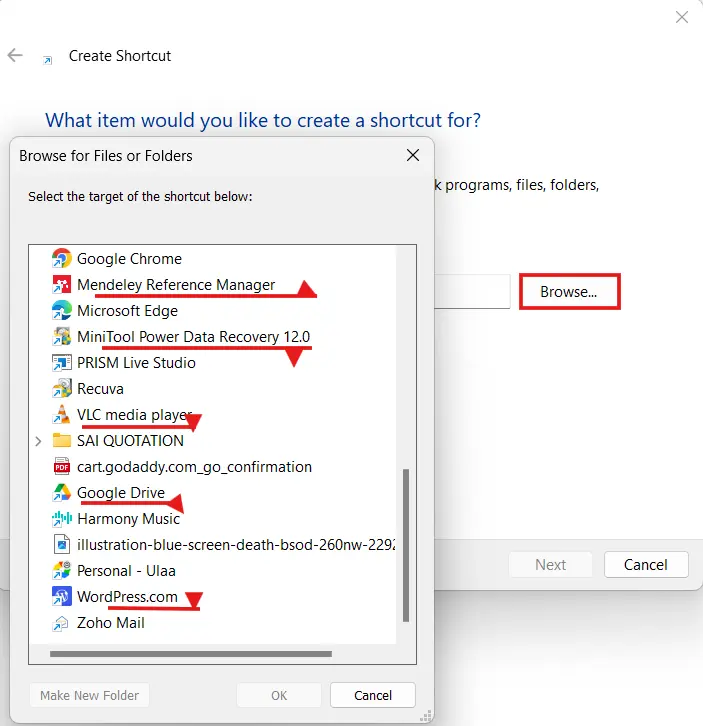
3. browse and Select the apps .Exe file you want to Add in startup folder
4. Example Give below:
5. After Selecting .Exe file Click Next → Finish
The Selected App Will now Automatically Start When Windows Boot.
For stop Apps from auto launching at startup:
⚠️Remember Deleting the App shortcut does not Uninstall the app.
all apps Doesn’t appear in the startup folder
✅You can Safely Disabled the Mention below Category:
❌ Apps you Do not Disabled:
Some times Startup folder not opening
Managing Windows 11 Startup folder one of the easiest ways to improve Windows Boot speed and also system performance. By adding only Important or required apps, Removing Unnecessary startup apps, PC Will Start faster and run smoother.
Mohammad Arman Ansari is the founder and CEO of pcnotfound.com. He is a professional computer hardware and software expert with over 8 years of hands-on experience in troubleshooting, system repair, Windows issues, and technical diagnosis.
We use cookies to improve your experience on our site. By using our site, you consent to cookies.
Manage your cookie preferences below:
Essential cookies enable basic functions and are necessary for the proper function of the website.
These cookies are needed for adding comments on this website.
Statistics cookies collect information anonymously. This information helps us understand how visitors use our website.
Google Analytics is a powerful tool that tracks and analyzes website traffic for informed marketing decisions.
Service URL: policies.google.com (opens in a new window)
SourceBuster is used by WooCommerce for order attribution based on user source.
You can find more information in our PRIVACY POLICY and PRIVACY POLICY.