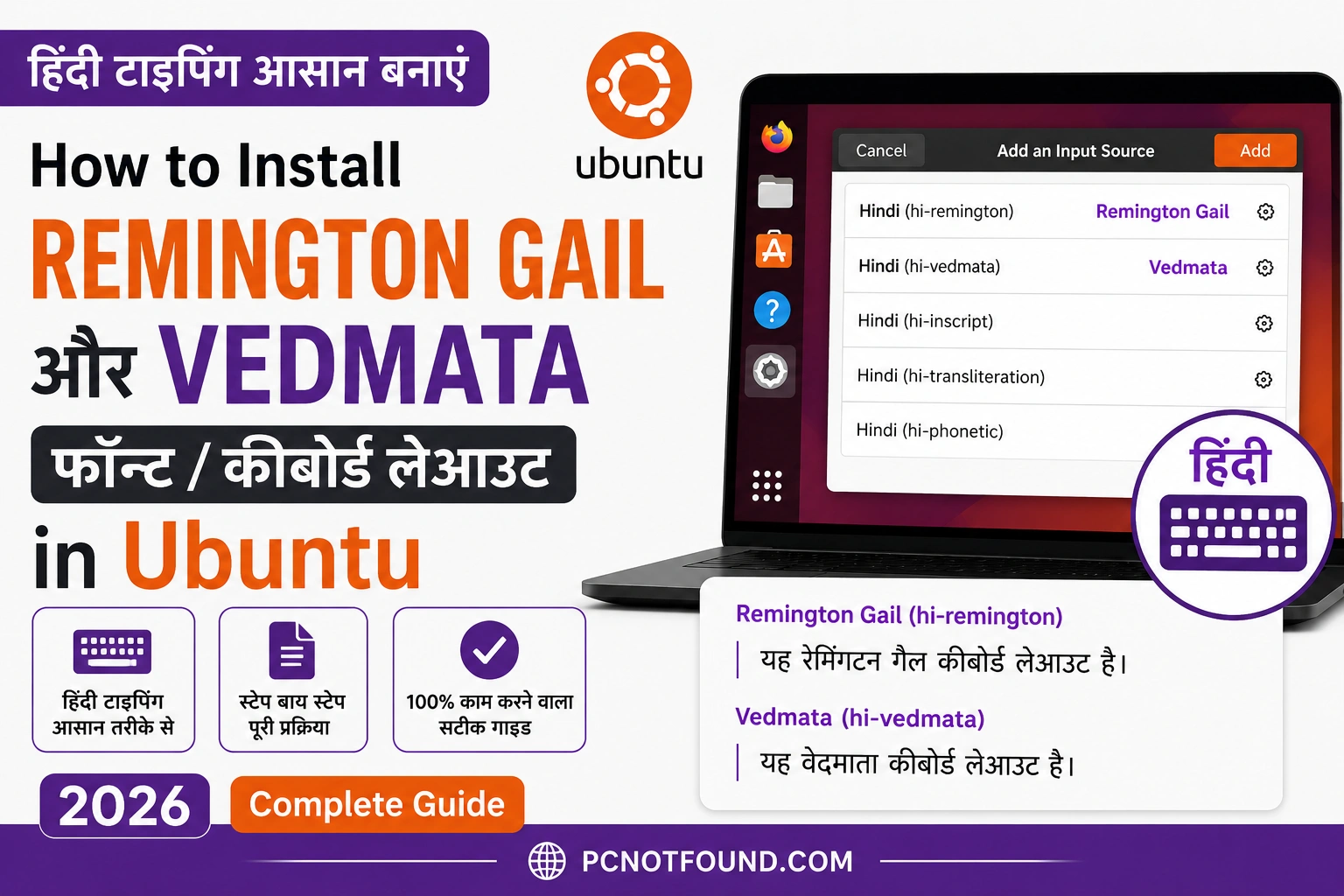
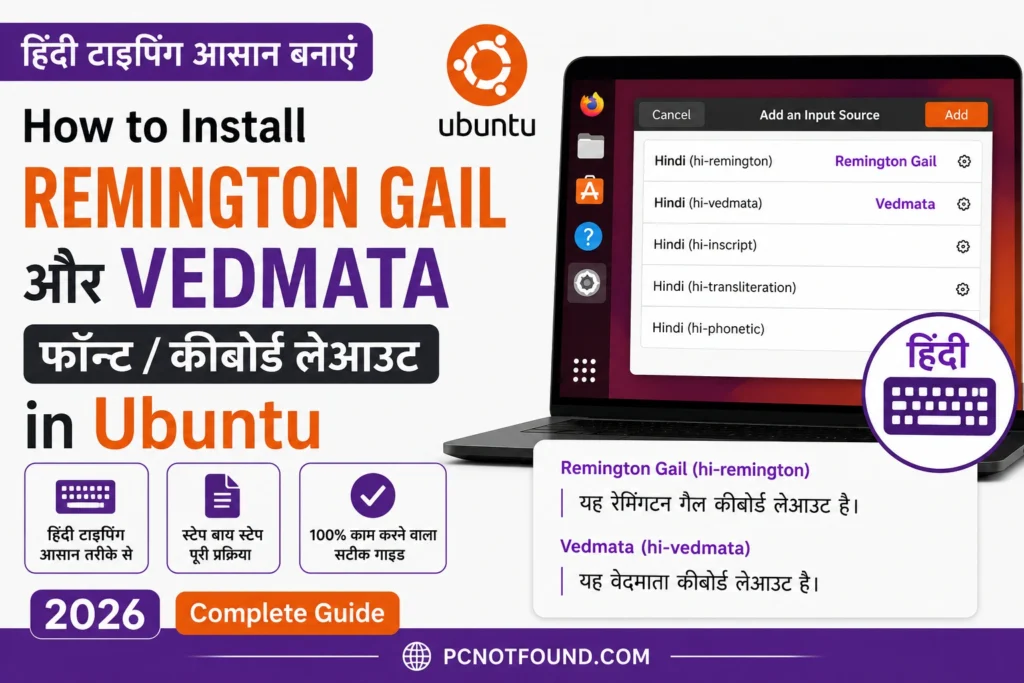
Ubuntu Linux Hindi keyboard setup showing Remington Gail and Vedmata input source installation tutorial for Unicode Hindi typing in 2026

How to Install Remington Gail and Vedmata Fonts in Ubuntu (Complete Guide 2026)

Learn how to install and enable Remington Gail and Vedmata fonts Hindi typing layouts in Ubuntu Linux. Complete 2026 guide for Hindi Unicode typing on Ubuntu.

Ubuntu Linux Hindi keyboard setup showing Remington Gail and Vedmata input source installation tutorial for Unicode Hindi typing in 2026
Install Remington Gail and Vedmata Fonts (Image Credit: Pcnotfound/m17n/Ubantu)

Here How to Install Remington or Vedmata Unicode Fonts

Step 1:

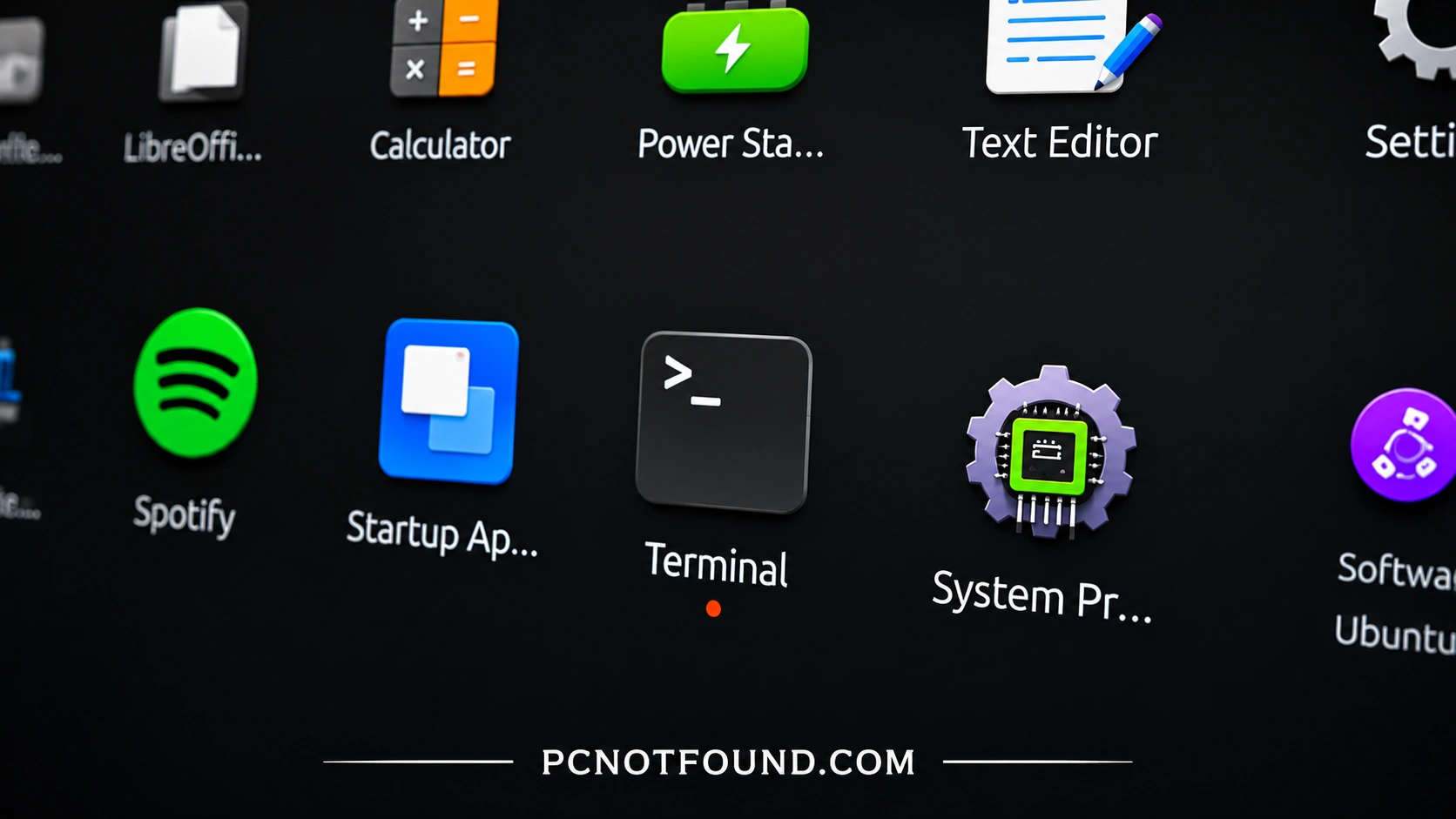
Go to the Ubuntu Apps And Click on Terminal App

High-resolution Ubuntu Linux desktop application launcher showing Terminal, Spotify, Startup Apps, Calculator, and Text Editor icons with PCNOTFOUND.COM branding at the bottom
Ubuntu Linux Terminal App Launcher (Image credit: Pcnotfound /Ubuntu)

Step 2:

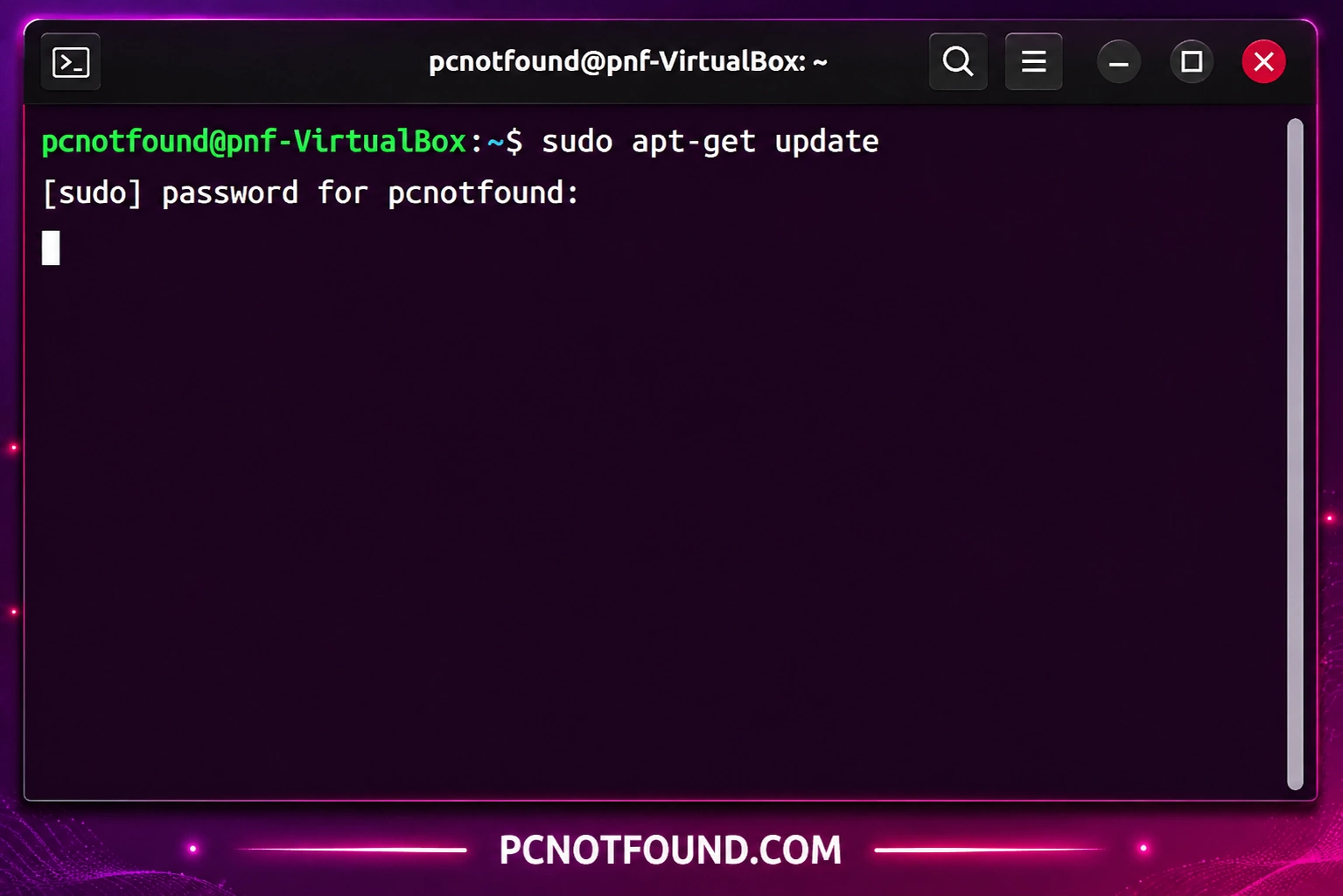
Type the Command Given Below Just Copy and paste. Wait For Same File will Be update after the update type Next Command.

Update Command is Vary important for font installation.

				
					sudo apt-get update
				
			
Ubuntu Terminal sudo apt-get update Command | PCNOTFOUND.COM
update package repositories using the sudo apt-get update (Image credit: Pcnotfound /Ubuntu)

Step 3:

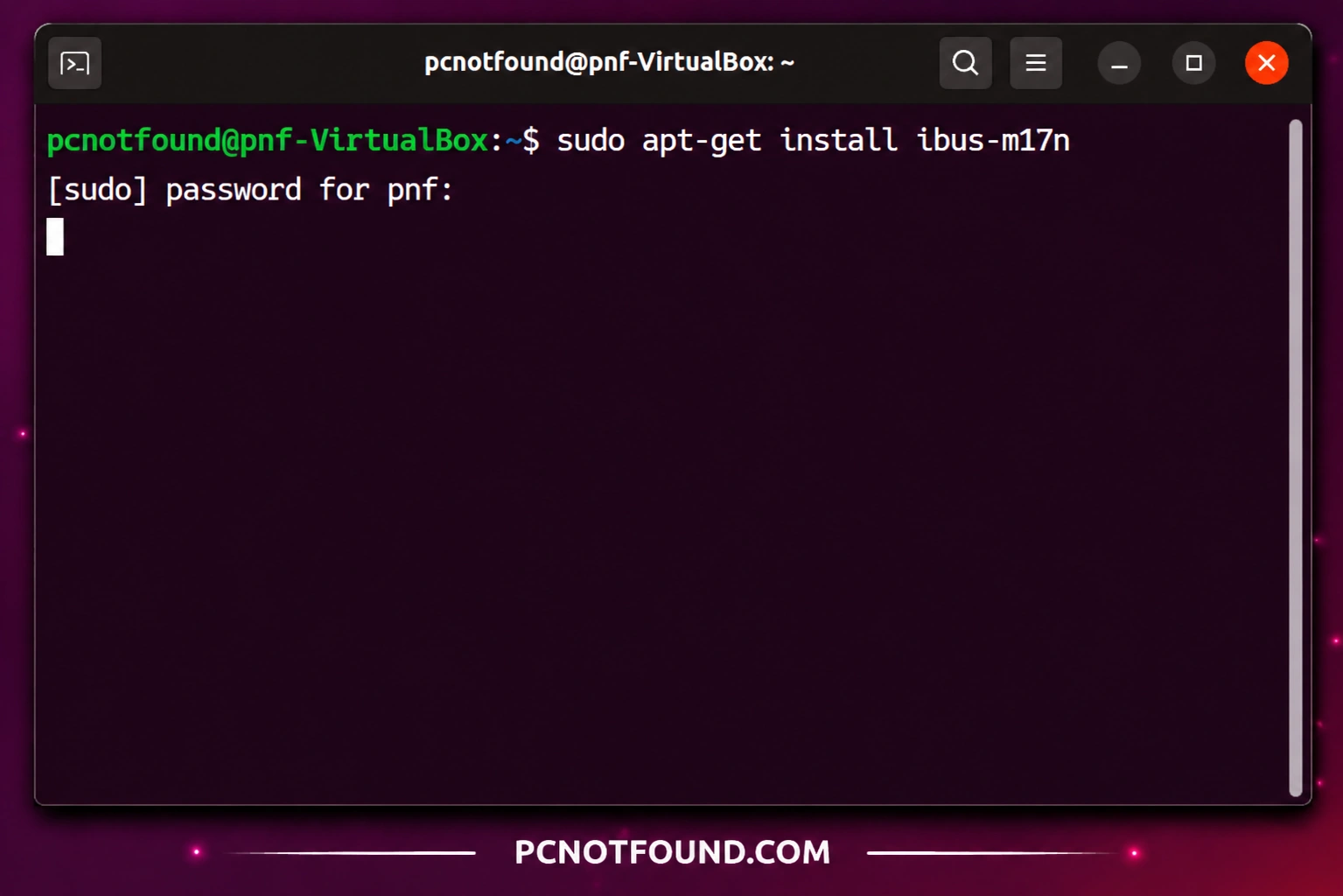
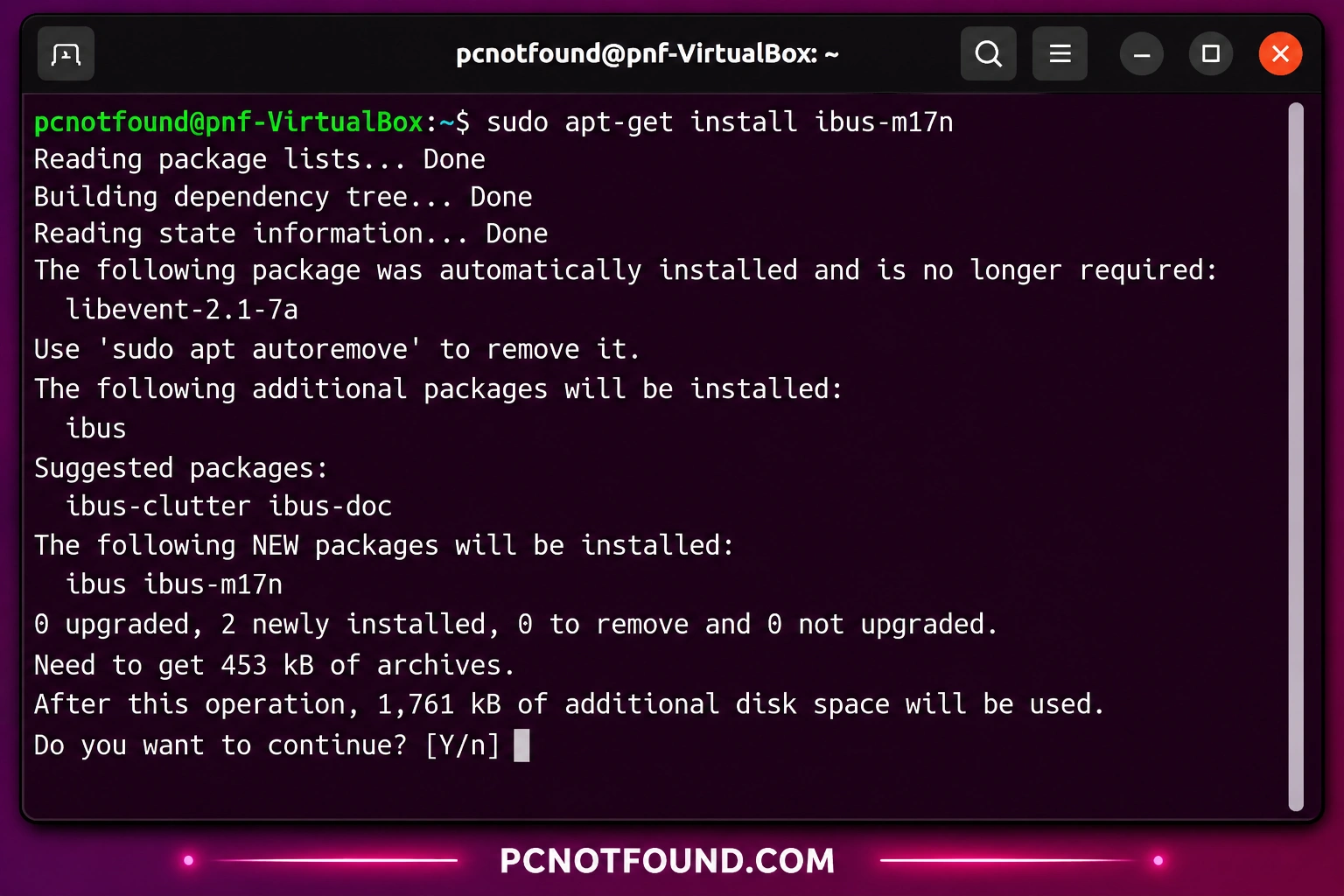
After the Checking update Type next Command as below mentioned. after typing Command Hit Enter, Sudo Asking For Password Type your root System Password and Press Enter.

				
					sudo apt-get install ibus-m17n
				
			
Ubuntu Linux terminal screenshot showing pcnotfound@pnf user running the command “sudo apt-get install ibus-m17n” to enable Hindi typing support and m17n keyboard layouts with PCNOTFOUND.COM branding
install-ibus-m17n (Image credit: Pcnotfound /Ubuntu)

After Reading Package or building Dependency Terminal Asking for Permission Press | Y | And Hit enter for Download the Additional 1,761 KB files.

Ubuntu terminal window showing the command sudo apt-get install ibus-m17n with package installation details and PCNOTFOUND.COM
Executing-ibus-m17n (Image credit: Pcnotfound /Ubuntu)

After Complete the process of Download. If no Error Occurred in your Terminal within installation. Congratulation Unicode fonts now installed in Your System. 
now Restart Your Ubuntu PC and Forward to next Step.

Step 4:

Now its Time to Setup Hindi Fonts for Use
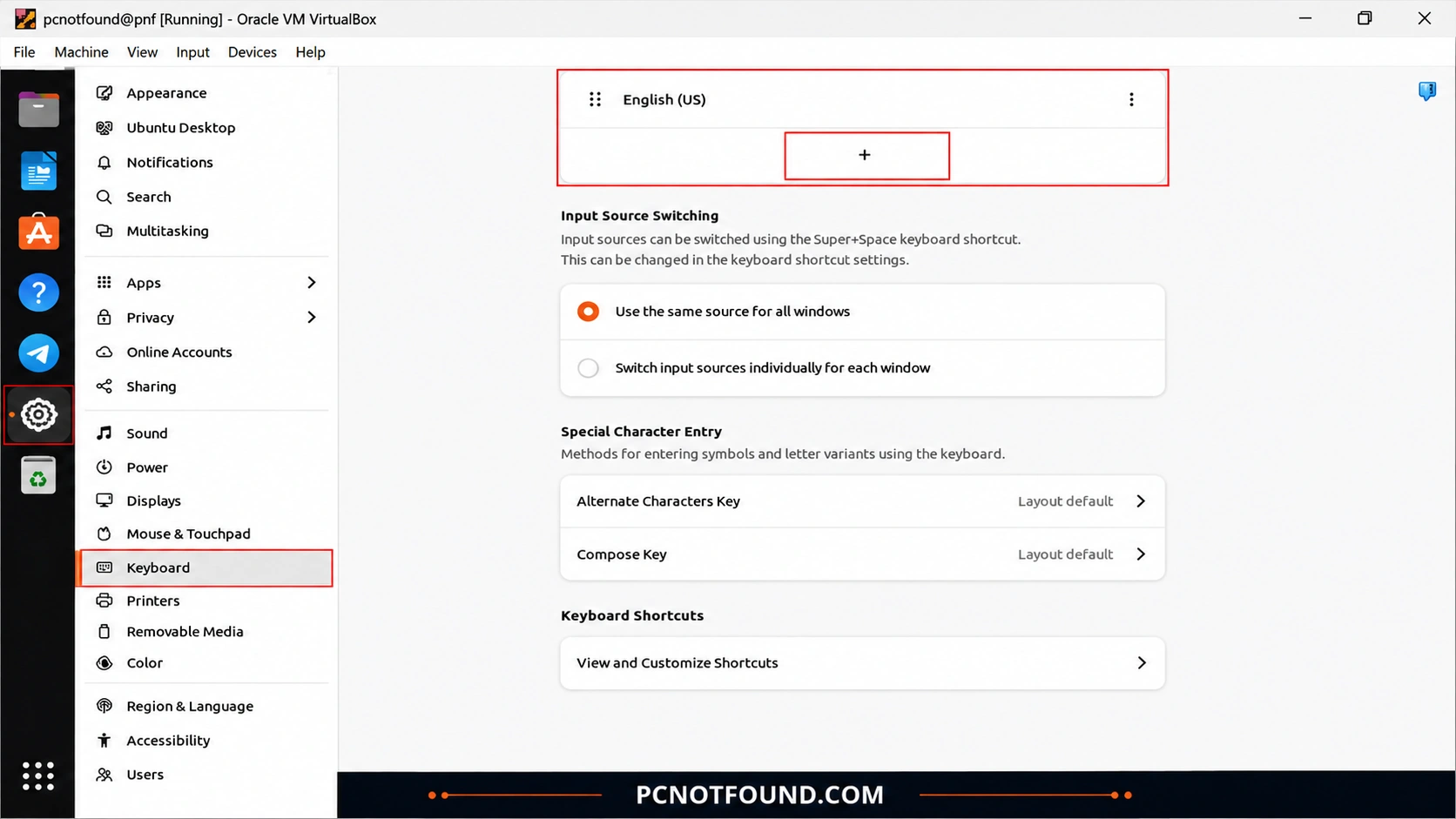
Go-to Ubuntu Setting Keyboard→ Click on ( + ) Icon.
Note :
In Older Version of Ubuntu You Have to find ( Region & Language ).

Ubuntu Keyboard Settings screen in Oracle VM VirtualBox showing the Keyboard section selected, Input Sources panel with English (US) layout, highlighted red guide boxes indicating where to add a new keyboard input source, and PCNOTFOUND.COM branding displayed at the bottom.
Ubuntu Keyboard Settings screen (Image credit: Pcnotfound /Ubuntu)

Step 5:

After Click on ( + ) Icon .
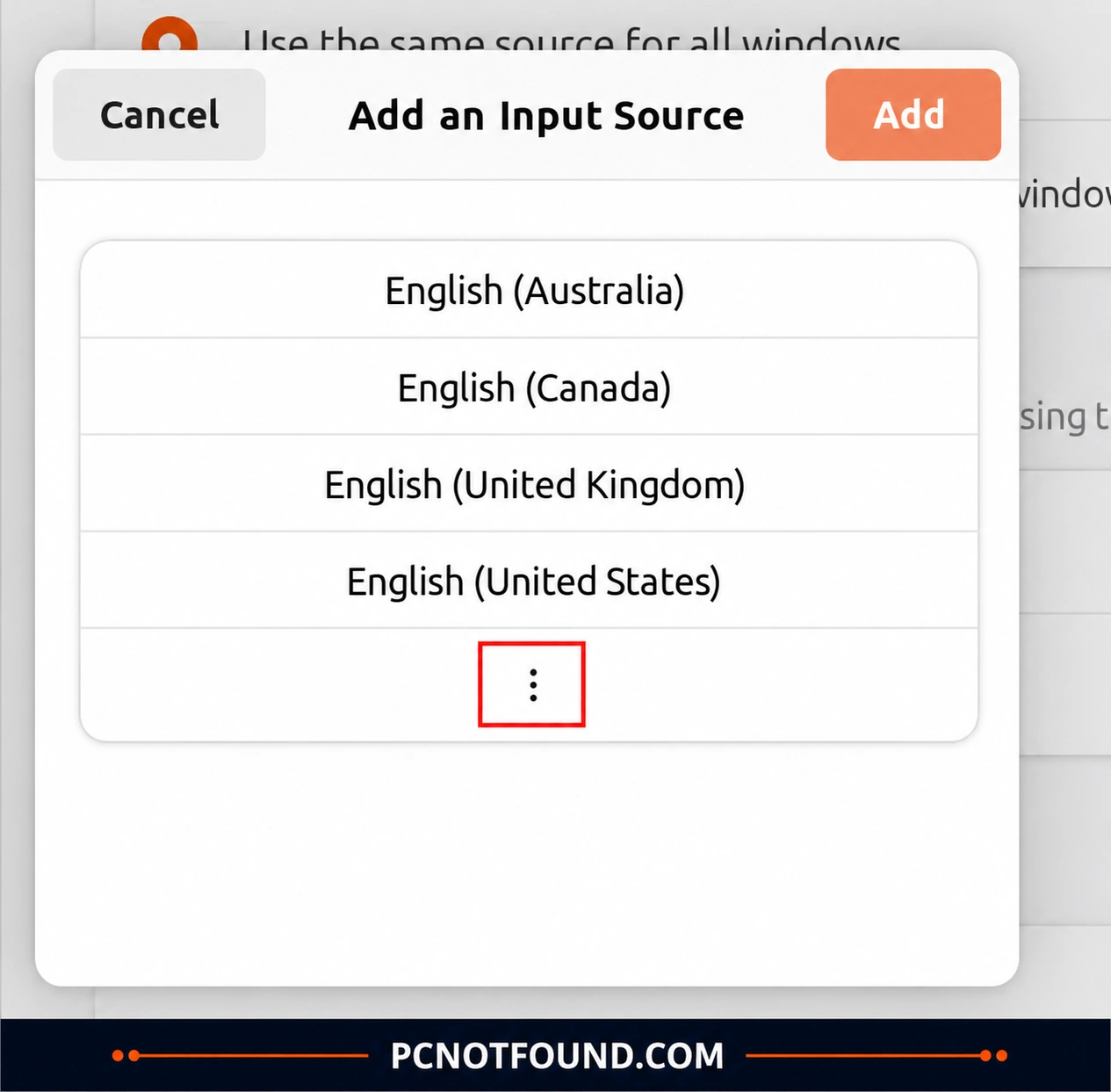
Other Option Will Open Add and input Source 
Click On ( 3 Dot )  Menu Botton at Down side below.

Ubuntu 24.04 keyboard input source settings window showing the Add Input Source dialog with English language variants
Ubuntu Keyboard Language Settings screen (Image credit: Pcnotfound /Ubuntu)

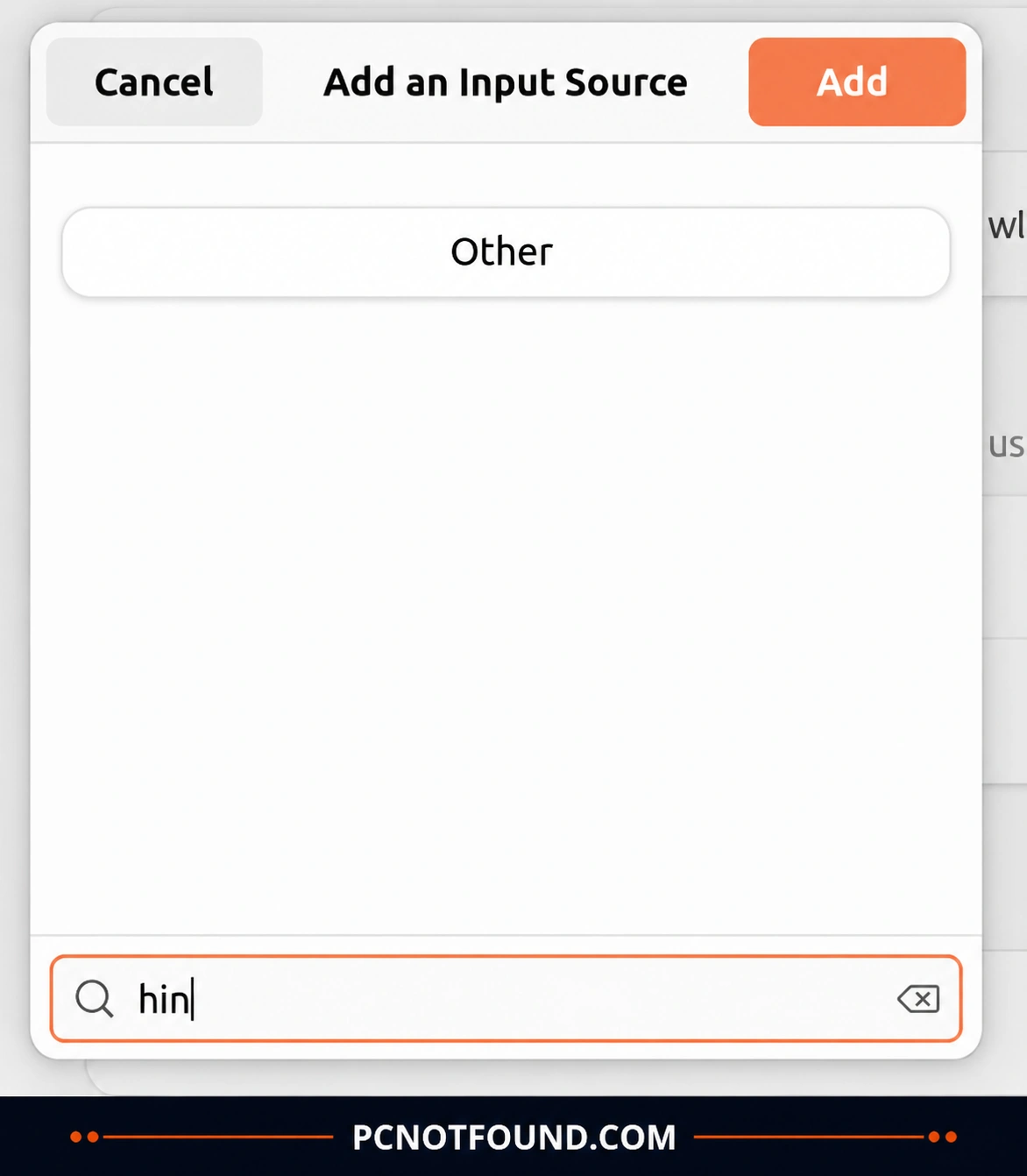
You See the Search option at Bottom Type “Hindi” Then Click on “Other” Option Given Above.

Ubuntu 24.04 keyboard input source settings window showing the Add Input Source dialog
Ubuntu Hindi Keyboard Language Settings screen (Image credit: Pcnotfound /Ubuntu)

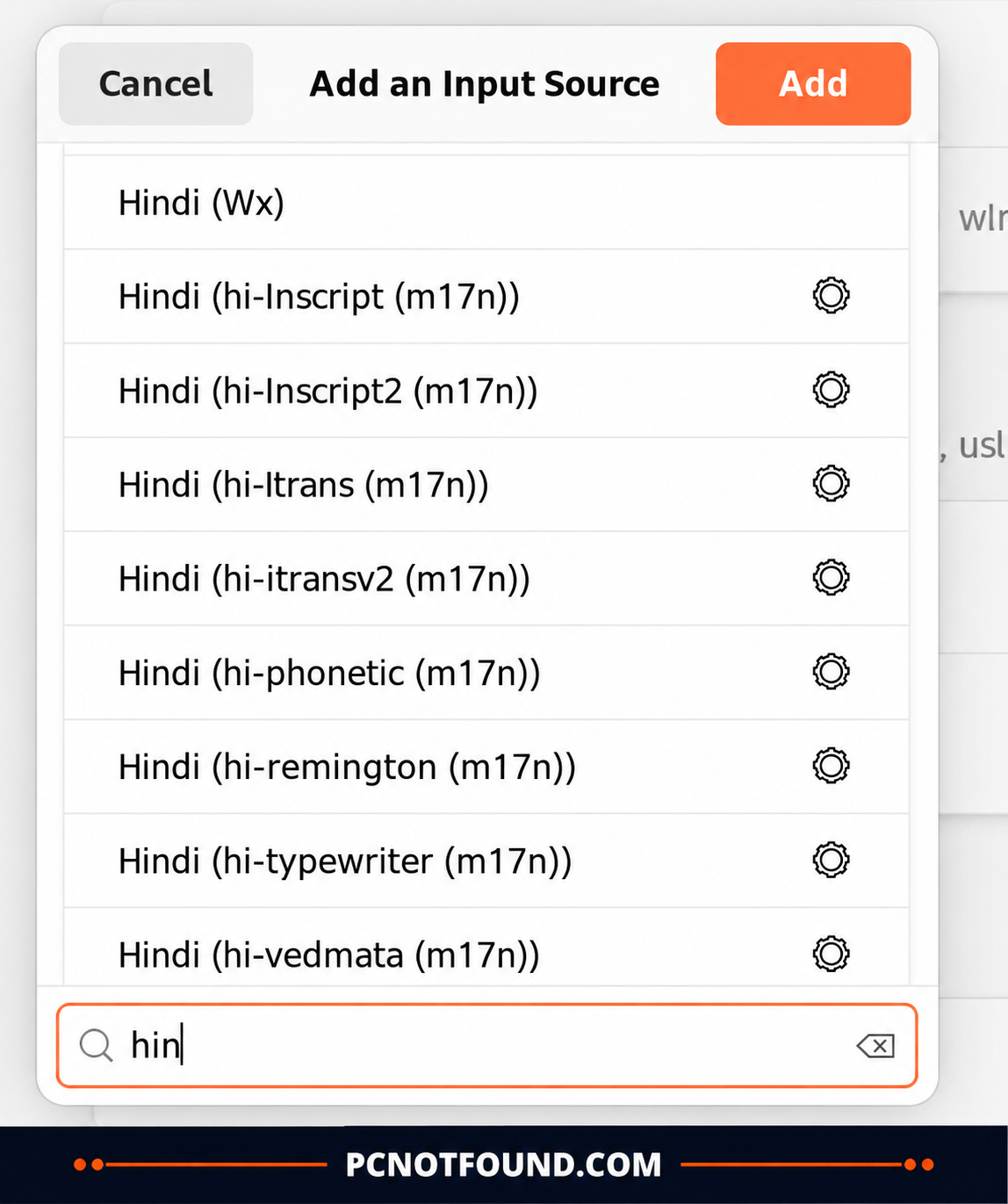
After Click on “Other” Option. You Will See the Installed Hindi Fonts. 
Choose  “Hindi (hi-Remington (m17n))”  or  ”Hindi (hi-Vedmata (m17n))”

Select Which fonts you want Then Click “Add” Button.

Add Hindi Remington, Vedmata Keyboard Layout in Ubuntu
Select and add the Remington or Vedmata Fonts keyboard layout (Image credit: Pcnotfound /Ubuntu)

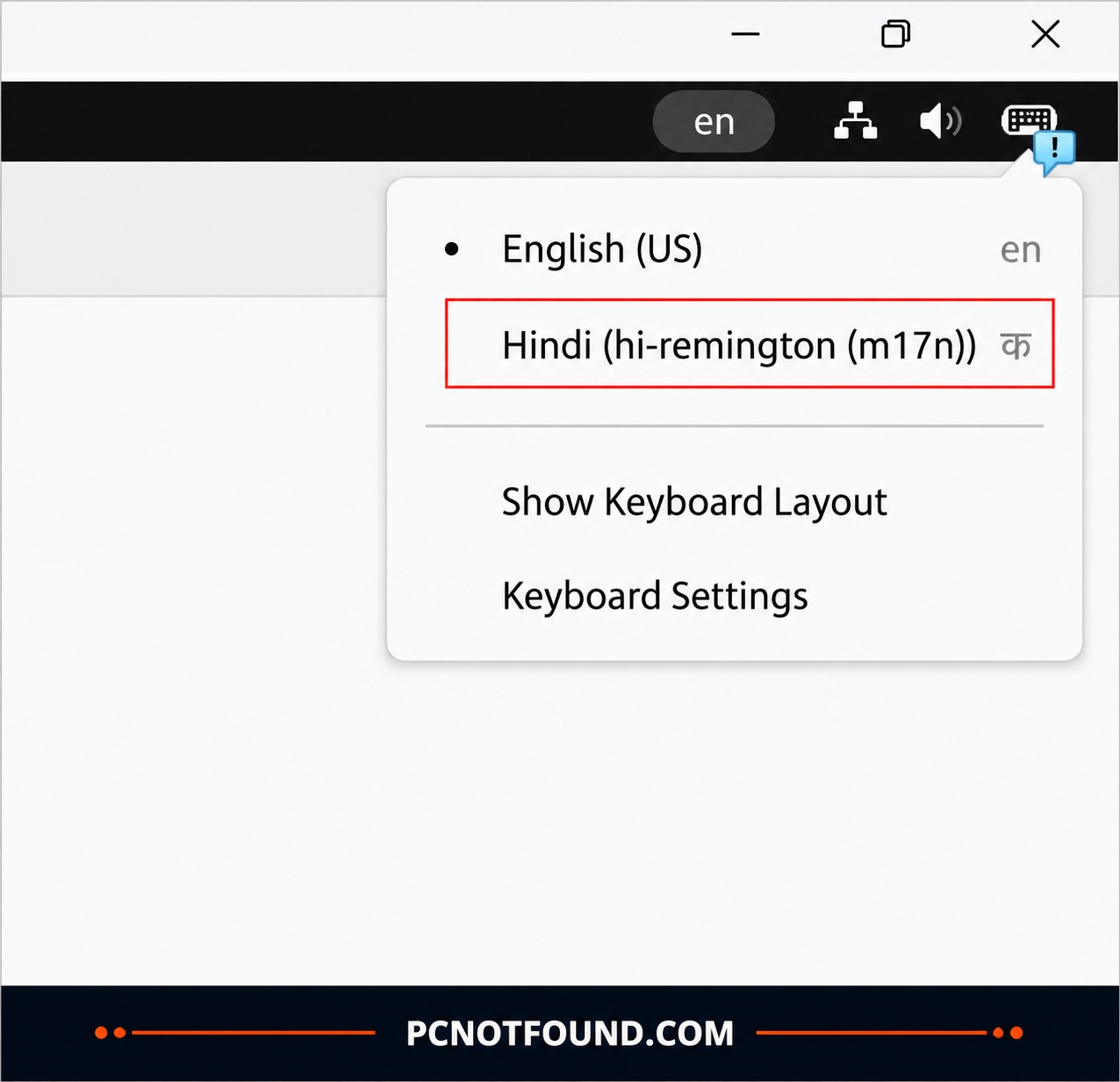
Congratulation. Your Hindi Remington Fonts Installed and Ready to use.

Select Remington font in Task bar Language option PCNOTFOUND>COM
Select Remington font in Task bar(Image credit: Pcnotfound /Ubuntu)

Go-to The Ubuntu Desktop and You Will See the Keyboard Language Input Icon at the right Side Corner, Click on the icon and Select Hindi (Hi-Remington (m17n)) Enjoy.😎

if your want to Download Ubuntu Desktop image Simply Click on the Link Given Below

Download Ubuntu 26.04 LTS

Download the latest Ubuntu ISO directly from the official Canonical website.


Download Ubuntu Official ISO

Ubuntu Disclaimer: Ubuntu® is a registered trademark of Canonical Ltd..  PCNOTFOUND.COM is not affiliated with or endorsed by Canonical Ltd. Ubuntu-related trademarks, logos, and screenshots are used for educational and informational purposes only.

Ubuntu screenshots displayed on PCNOTFOUND.com are used for instructional and educational purposes only. Ubuntu® and related trademarks belong to Canonical Ltd.. PCNOTFOUND.COM does not claim ownership of any Ubuntu trademarks, logos, or software used on this website are the property of their respective owners👍❤️ 

Picture of Md. Arman ansari
Md. Arman ansari

the founder and CEO of pcnotfound.com. He is a professional computer hardware and software expert with over 8+ years of hands-on experience in troubleshooting, system repair, Windows issues, and technical diagnosis

0 Reviews

Write a Review

Scroll to Top